Computer Keyboard Repair: Ultimate Fix 2025
Why Your Keyboard Suddenly Stops Working (And What to Do About It)
Computer keyboard repair is often simpler than you think. Here’s what to try first:
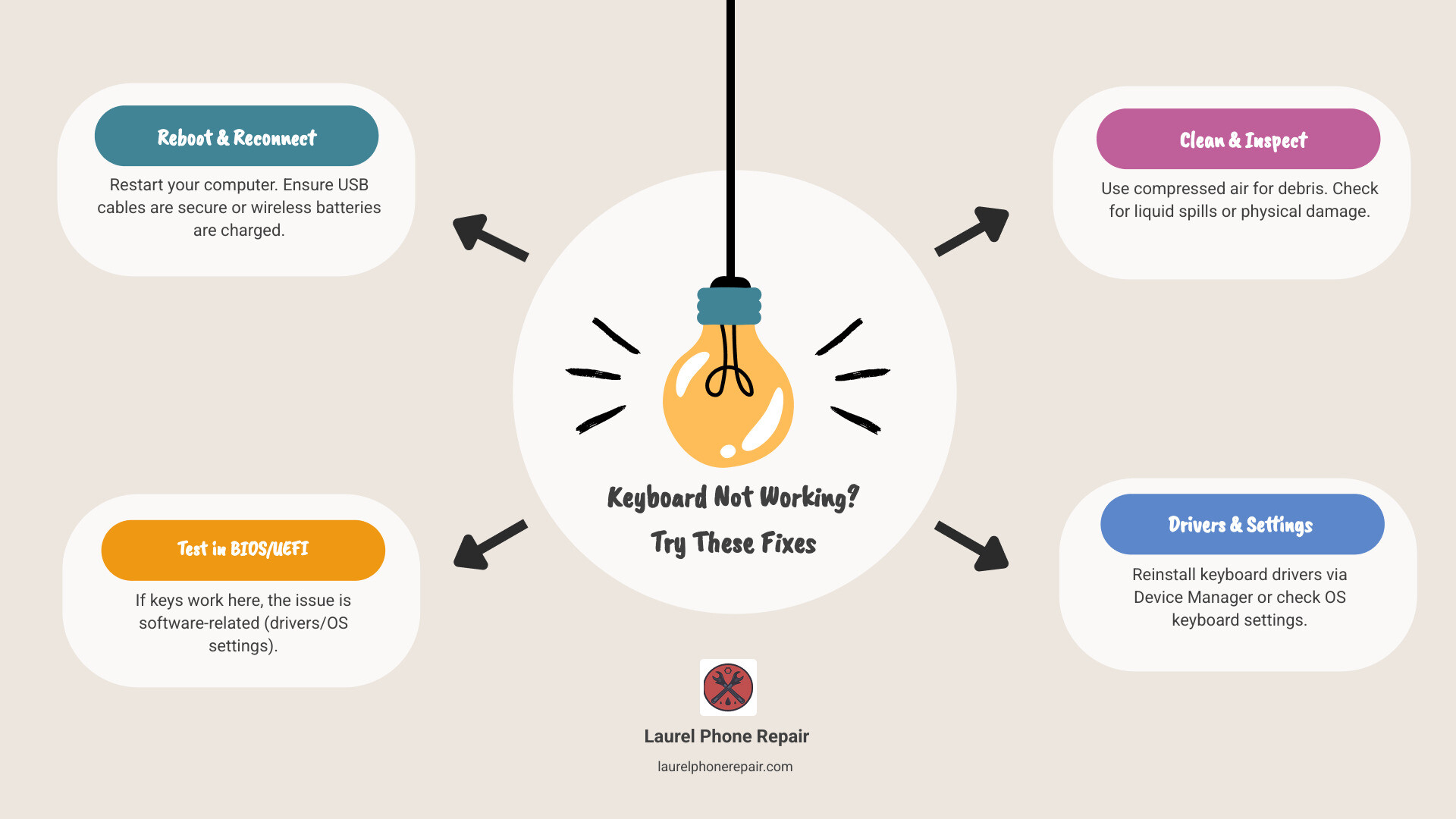
- Reboot your computer – This fixes most keyboard issues immediately
- Check connections – Ensure USB cables are plugged in or wireless batteries aren’t dead
- Test in BIOS/UEFI – If keys work there, it’s a software problem
- Clean debris – Use compressed air to remove dust and crumbs
- Reinstall drivers – Windows Device Manager can reset keyboard drivers
- Check for liquid damage – Spills often cause sticky or dead keys
A broken keyboard is no laughing matter. Whether it’s a single key that stopped responding, an entire section that’s gone dark, or a keyboard that cuts out randomly, these issues can halt your productivity instantly. The good news? Many keyboard problems stem from simple causes like dirty contacts, loose connections, or software glitches that you can fix yourself in minutes.
The research shows that most keyboard failures fall into predictable patterns. A few keys failing in sequence often indicates a problem with the keyboard matrix – the internal grid that registers your key presses. Random failures might point to a loose cable connection. And keys that work in your computer’s BIOS menu but fail in Windows? That’s almost always a driver or settings issue, not hardware failure.
I’m Ralph Harris, and with over 20 years of electronics repair experience and more than 500 Apple repair certifications, I’ve diagnosed and fixed countless keyboard issues – from simple cleaning jobs to complex circuit board repairs requiring specialized soldering equipment. This guide will walk you through everything from basic troubleshooting to knowing when computer keyboard repair requires professional help.
First Steps: Diagnosing the Problem
When your keyboard throws a tantrum, the first step is to calmly assess the situation. Often, the solution is much simpler than we anticipate. We’ll start with the easiest fixes and gradually move to more involved diagnostics.
The absolute first thing we recommend is a simple reboot. It might sound cliché, but a “simple reboot can correct a thousand ails,” including many keyboard issues. If your computer is completely unresponsive, you might need to hold down the power button for 10-15 seconds to force a shutdown, then power it back on.
Next, let’s check the connections. For an external keyboard, ensure the USB cable is firmly plugged into your computer. Sometimes, a loose connection is all it takes to disrupt communication. If it’s a wireless keyboard, confirm that the batteries aren’t dead. A lost USB dongle for a wireless keyboard is another common issue, but if the keyboard itself isn’t powering on, fresh batteries are usually the first thing to check.
To help us test the keyboard without relying on its physical keys, we can use an On-Screen Keyboard. This virtual keyboard allows us to type with a mouse, helping us determine if the issue is with the physical keys or something deeper within the system.
Need help diagnosing the issue? Don’t hesitate to visit our experts for quick and accurate Device Diagnostics.
Is It a Hardware or Software Issue?
One of the most crucial steps in computer keyboard repair is determining if the problem is rooted in hardware or software. This distinction guides our troubleshooting path significantly.
A great way to test this is by performing a BIOS/UEFI test. When you first power on your computer, before the operating system loads, you can usually enter the BIOS or UEFI setup menu by pressing a specific key (often F2, Delete, F10, or F12). If your keyboard works perfectly within this menu – meaning you can steer and select options using the problem keys – then we know the issue lies within your operating system (Windows, macOS, etc.), not the physical keyboard itself. If the keys still don’t work in BIOS/UEFI, it’s a strong indicator of a hardware problem.
For Windows users, booting into Safe Mode can also help. Safe Mode loads Windows with only essential drivers and services, which can help determine if a third-party application or driver is causing the conflict. While Safe Mode won’t permanently fix the problem, it helps us narrow down the cause.
If you have an external keyboard, testing it on another computer is a quick way to isolate the problem. If it works on another machine, the issue is with your original computer; if it fails on another machine too, the keyboard itself is the culprit.
Finally, consider the scope of the failure. Is it just one key not working, or is the entire keyboard dead? This helps us differentiate between a localized hardware fault (like a single key switch) and a more systemic issue (like a complete connection failure or a major software bug).
Identifying the Type of Failure
Understanding the pattern of your keyboard’s malfunction can provide valuable clues for effective computer keyboard repair.
- Specific Key Failure: If only one or two keys are not working, it often points to a physical issue with that particular key switch, or debris lodged underneath.
- A Section of Keys Not Working: This is a classic sign of a problem within the keyboard’s matrix. Keyboards operate on a grid system, with rows and columns. If keys like ‘minus’, ‘left bracket’, ‘semi-colon’, and ‘Space’ all fail simultaneously, and they follow a pattern on the keyboard layout, it’s highly indicative of a failure in one of the “X and Y axes of that matrix.” This could be a damaged trace on the flexible circuit board inside the keyboard.
- Intermittent Issues: A keyboard that works sometimes and then stops, or keys that register erratically, often suggests a loose or partially damaged connection. For laptops, “sometimes the keyboard loses connection with the laptop’s motherboard, and you have a keyboard that either works intermittently or not at all.”
- Complete Keyboard Malfunction: If the entire keyboard is unresponsive, it could be a complete connection failure, a major driver issue, or a more serious hardware problem like a faulty encoder chip.
By carefully noting which keys are affected and whether there’s a pattern, we can often pinpoint the area of concern and guide our troubleshooting efforts more efficiently.
Tackling Software and Settings Glitches
Once we’ve ruled out obvious hardware failures, it’s time to dive into the software side of things. Many keyboard problems aren’t physical at all, but rather stem from driver conflicts, incorrect settings, or even malicious software.
Software issues can manifest in various ways: keys typing the wrong characters, keys repeating excessively, or keys being unresponsive despite the hardware being fine. “If none of the above solutions solve the problem, it’s possible that your keyboard is the victim of a virus.” So, a thorough malware scan might be in order if nothing else works.
Reinstalling Keyboard Drivers
Drivers are the essential software that allows your operating system to communicate with your keyboard. If these drivers become corrupted or outdated, your keyboard can stop working correctly.
For Windows users, the process is straightforward:
- Open Device Manager: You can typically find this by searching for “Device Manager” in the Windows search bar.
- Locate Keyboards: Expand the “Keyboards” section.
- Uninstall Driver: Right-click on your keyboard device (it might be listed as “Standard PS/2 Keyboard” or similar) and select “Uninstall device.” Do NOT select “Delete the driver software for this device” unless specifically instructed.
- Reboot: Restart your computer. Windows should automatically detect the keyboard and “grab the generic drivers for the keyboard, which may fix the problem.”
- Update from Manufacturer: If the issue persists, visit your computer or keyboard manufacturer’s website and download the latest keyboard drivers for your specific model. Install these drivers and reboot again.
For Mac users, uninstalling individual drivers can be tricky. Instead, we recommend:
- Software Update: Go to
System Settings > General > Software Updateand install any available updates. macOS updates often include driver fixes. - SMC, PRAM, or NVRAM Reset: For more persistent issues, you can try resetting your Mac’s System Management Controller (SMC), Parameter RAM (PRAM), or Non-Volatile RAM (NVRAM). The procedure varies by Mac model, so check Apple’s support documentation for the correct steps.
Adjusting Your Keyboard Settings
Sometimes, the keyboard isn’t broken; it’s just configured in a way that makes it seem broken! Windows and macOS offer several accessibility and typing settings that, if misconfigured, can lead to frustrating keyboard behavior.
- Filter Keys: If your keyboard is behaving strangely, “make sure Filter Keys and Sticky Keys are also turned off.” Filter Keys is an accessibility feature designed to ignore brief or repeated keystrokes, which can make your keyboard seem unresponsive or laggy.
- Sticky Keys: Another accessibility feature, Sticky Keys allows modifier keys (like Shift, Ctrl, Alt, or Windows key) to remain active until another key is pressed. While helpful for some, it can cause unexpected behavior if accidentally enabled.
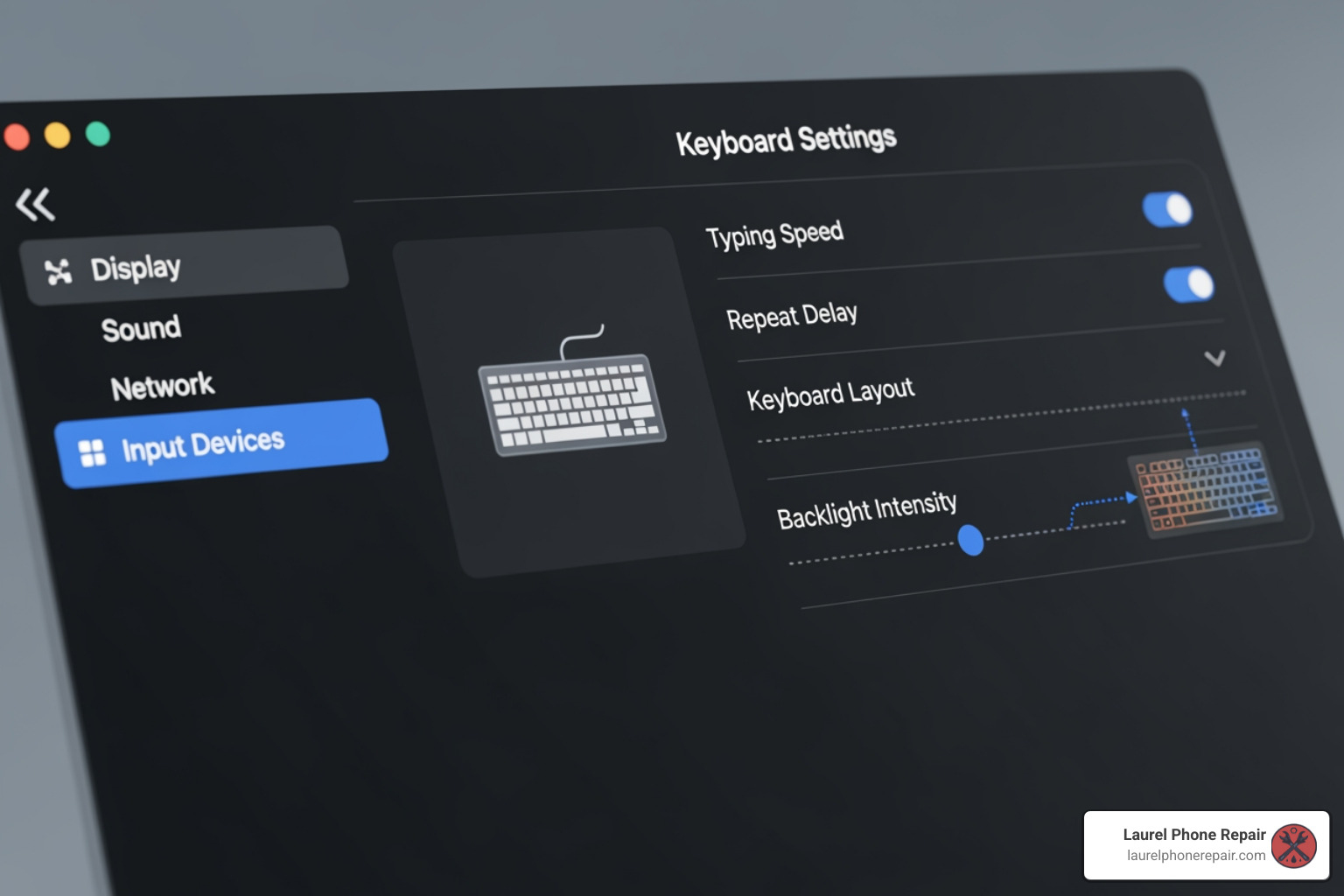
- Repeat Delay Settings: If you find that “pressing a key might type two or more characters” even with a single press, your keyboard’s Repeat Delay setting might be too short. Adjusting this in your keyboard settings (often found under Accessibility or Ease of Access) can resolve unwanted double-typing.
- Checking and Changing Keyboard Layout: If your keys are typing entirely different characters than what’s printed on them (e.g., you press “A” and get “@”), your keyboard layout or language settings might be incorrect. Ensure your operating system is set to the correct keyboard layout for your region and language.
Hands-On Hardware Fixes: Cleaning and Simple Repairs
Now we move on to the physical aspects of computer keyboard repair. Many issues, especially sticky or unresponsive keys, are due to physical obstructions or minor damage that can be fixed with a bit of elbow grease and the right tools.
“Quality keyboards die because of abuse. A few drops of any beverage with acid in it will surely cause an eventual failure.” Liquid spills, dust, and debris are the arch-nemeses of keyboards. Crumbs, hair, and everyday grime can easily get lodged under keycaps, preventing switches from functioning correctly.
The Essential Keyboard Cleaning Guide
A clean keyboard is a happy keyboard. Here’s our essential guide to cleaning your keyboard effectively:
- Shut It Down: Always power off and unplug your computer or keyboard before cleaning. Safety first!
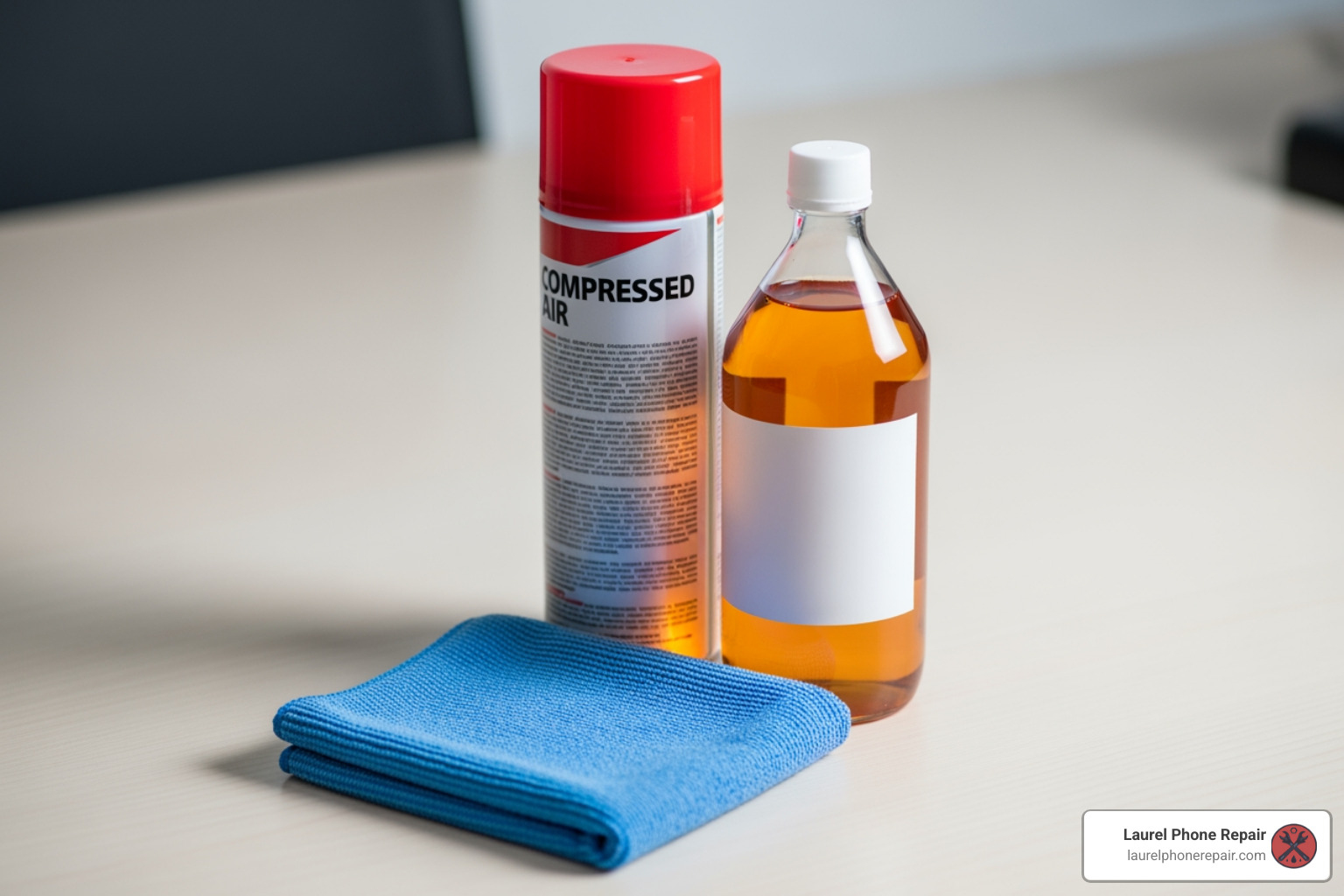
- Loose Debris: Turn your keyboard upside down and gently shake it to dislodge any large crumbs or debris. Follow up with compressed air, holding the can upright and using short bursts to blow out particles from between the keys. For laptop keyboards, “if you notice something stuck under a certain key, try tilting the laptop to different angles while blowing the compressed air to get it out.”
- Grease & Grime: For general cleaning and removing oil and grime, dampen a microfiber cloth with isopropyl alcohol (preferably >90% purity) and gently wipe down the surface of the keycaps and the areas between them. Do not spray liquid directly onto the keyboard.
- Cleaning Up Spills & Sticky Keys: If “one or two keys are stuck because of soda spillage, pop the offending key caps off (if possible) and try to clean as much dried liquid from the key switch as possible.” Use a cotton swab lightly dampened with isopropyl alcohol or soapy water to carefully clean the key switch mechanism. For deeply sticky key retainers on laptops, you might need to remove them and soak them in hot, soapy water for about 5 minutes, then dry thoroughly before reinstallation.
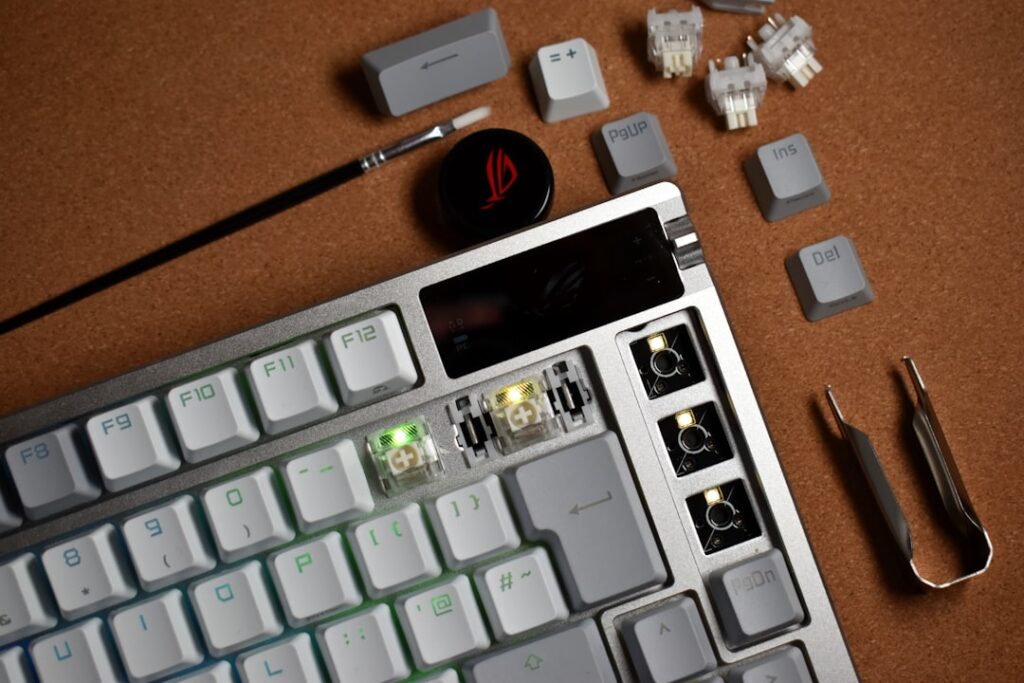
- Popping Off Keycaps: Be extremely careful when removing keycaps. “Key caps are held on by tiny fragile clips. Be careful as you pry up any keys.” Use a keycap puller or a small, flat prying tool. For Apple’s “butterfly” keyboards (found on some 2015+ MacBooks and 2016+ MacBook Pros), “we don’t recommend attempting to remove keys from your keyboard” due to their extreme fragility. If you have one of these, consult Apple’s Keyboard Service Program.
For more detailed instructions, especially for laptop keyboards, consult a comprehensive Laptop Keyboard Cleaning Guide.
Basic DIY computer keyboard repair
Beyond cleaning, some minor hardware repairs are possible at home, provided you have the right tools and a steady hand.
Necessary Tools: For most keyboard disassembly, you’ll need “a small Phillips screwdriver. Some, such as this one, may also need a tiny Allen or Torx driver.” An Ohm Meter or Multimeter can be invaluable for testing continuity, and an On-Screen Keyboard helps with live testing. For prying, a thin plastic tool (like a guitar pick or specific electronics opening tool) is useful. Cotton swabs and isopropyl alcohol are also staples.
Removing Keycaps Safely: As mentioned, proceed with caution. Once a keycap is off, you can inspect the switch underneath for damage or debris. Sometimes, a broken keycap or its stabilizer can be replaced.
Checking and Reseating Internal Ribbon Cables on Laptops: If your laptop keyboard is working “intermittently or not at all,” it might be due to a loose ribbon cable connection to the motherboard. This is a more involved repair as it requires disassembling part of your laptop. If you’re comfortable opening your laptop, locate the keyboard’s ribbon cable and gently disconnect and reconnect it to ensure it’s seated properly. Be extremely careful not to tear the delicate ribbon.
Advanced Computer Keyboard Repair and When to Call a Pro
When simple cleaning and software tweaks don’t cut it, we enter the field of more advanced computer keyboard repair. This often involves delving into the keyboard’s internal circuitry, a task that requires specialized tools, a good understanding of electronics, and a lot of patience.
Signs of permanent hardware failure include widespread key malfunction without a clear software cause, or visible damage to the circuit board. If a significant section of keys is dead in a pattern, it points to the keyboard matrix. If nothing works, it could be the encoder chip. This is where “the more advanced repair techniques for keyboard circuitry” come into play.
Laptop vs. External computer keyboard repair
The approach to computer keyboard repair differs significantly between integrated laptop keyboards and external keyboards.
- External Keyboards: These are generally easier to disassemble and access the internal components. You can usually separate the keycaps, the flexible membrane sheets (the “matrix” with X and Y axes), and the encoder board. This allows for detailed inspection and repair of damaged traces using conductive ink or for replacing faulty components. An example repair showed “33 screws on the metal plate” of a typical keyboard, and warned to “take great care” when lifting the matrix sheets to avoid disturbing the tiny flexible caps at each key position.
- Integrated Laptop Keyboards: Repairing a laptop keyboard is often more complex and can be expensive. The keyboard is frequently integrated into the laptop’s top case, meaning replacing it often involves replacing a large portion of the chassis. These are not designed for easy DIY repair. “If an extensive section of the keyboard is stuck because of liquid damage, like a spilled cup of soda or coffee, your best recourse may be to have the keyboard assembly replaced” rather than attempting to repair individual keys. Special caution is needed for models like Apple’s “butterfly” keyboards, which were “particularly fragile and difficult to remove intact,” leading to a class-action lawsuit settlement.
When to Consider Professional Repair or Replacement
While some DIY fixes are possible, there comes a point when a user should consider professional computer keyboard repair or even full replacement.
- Extensive Liquid Damage: If a large amount of liquid, especially acidic beverages, has seeped into the keyboard, it can cause widespread corrosion and damage to the delicate circuitry. While you might clean individual sticky keys, “if an extensive section of the keyboard is stuck because of liquid damage… your best recourse may be to have the keyboard assembly replaced.”
- Swollen Laptop Battery: In laptops, “if your laptop battery becomes swollen, for instance, it can push on other parts and prevent them from working properly,” including the keyboard. A swollen battery is a serious safety hazard and requires immediate professional attention.
- Failed Encoder Chip: This is the brain of your keyboard, converting key presses into signals the computer understands. If “the bad keys did not appear while testing either connector than the Encoder chip is bad,” it’s a complex component to replace, often requiring micro-soldering skills and specialized equipment.
- Broken Traces on the Circuit Board: While a single broken trace might be fixable with conductive ink by an experienced DIYer, extensive or hidden damage requires professional diagnostics. One repair case involved a “21Mhz pixel clock” trace damaged by a leaking battery that was “totally invisible” and required careful tracing and a “short jumper later” to fix.
- Cost vs. Benefit Analysis: Sometimes, the cost and effort of a complex repair outweigh the price of a new keyboard. Especially for older, less expensive external keyboards, replacement might be the more practical choice. For integrated laptop keyboards, however, replacement can be costly, making professional repair a viable option if it’s less than a new laptop.
If you’re still under warranty, it’s always worth checking with your laptop manufacturer’s tech support line before attempting any repairs yourself. For everything else, that’s where we come in. Our skilled technicians in Laurel, Hattiesburg, Jackson, and Jones County, Mississippi, are equipped to handle complex computer keyboard repair issues.
Conclusion
We’ve covered a lot of ground in our journey through computer keyboard repair, from simple reboots to intricate circuit board diagnostics. Many keyboard woes can be resolved with basic troubleshooting steps like checking connections, rebooting your system, or a thorough cleaning. Software issues, such as corrupted drivers or misconfigured settings, are also common culprits and often have straightforward solutions.
However, some problems, particularly those involving extensive liquid damage, internal hardware failures like a faulty encoder chip, or delicate integrated laptop keyboards, demand a more expert touch. It’s crucial to know your limits and when to seek professional help to avoid further damage to your device. Always prioritize safety when dealing with electronics, especially when opening up devices.
At Laurel Phone Repair, our experienced technicians specialize in quick, affordable, and high-quality repairs for phones, tablets, and computers. We’re here to help you with everything from simple diagnostics to complex component-level repairs. Don’t let a faulty keyboard slow you down – our team in Laurel, Hattiesburg, Jackson, and Jones County, Mississippi, is ready to get your device back in top shape.
Get professional computer repair services and let us take care of your keyboard woes, so you can get back to typing away with ease!