Is Replacing Your Samsung A70 Screen Easy? Find Out Here!

Samsung Galaxy A70 screen replacement: Easy 2025 Guide

Why a Broken Screen Doesn’t Mean a Broken Phone

Samsung Galaxy A70 screen replacement is a common repair that can restore your device to full functionality, whether you choose to do it yourself or hire a professional. Here’s what you need to know:

  • DIY Cost: $12-$115 for parts, 1-3 hours of your time
  • Professional Cost: Competitive pricing with same-day service available
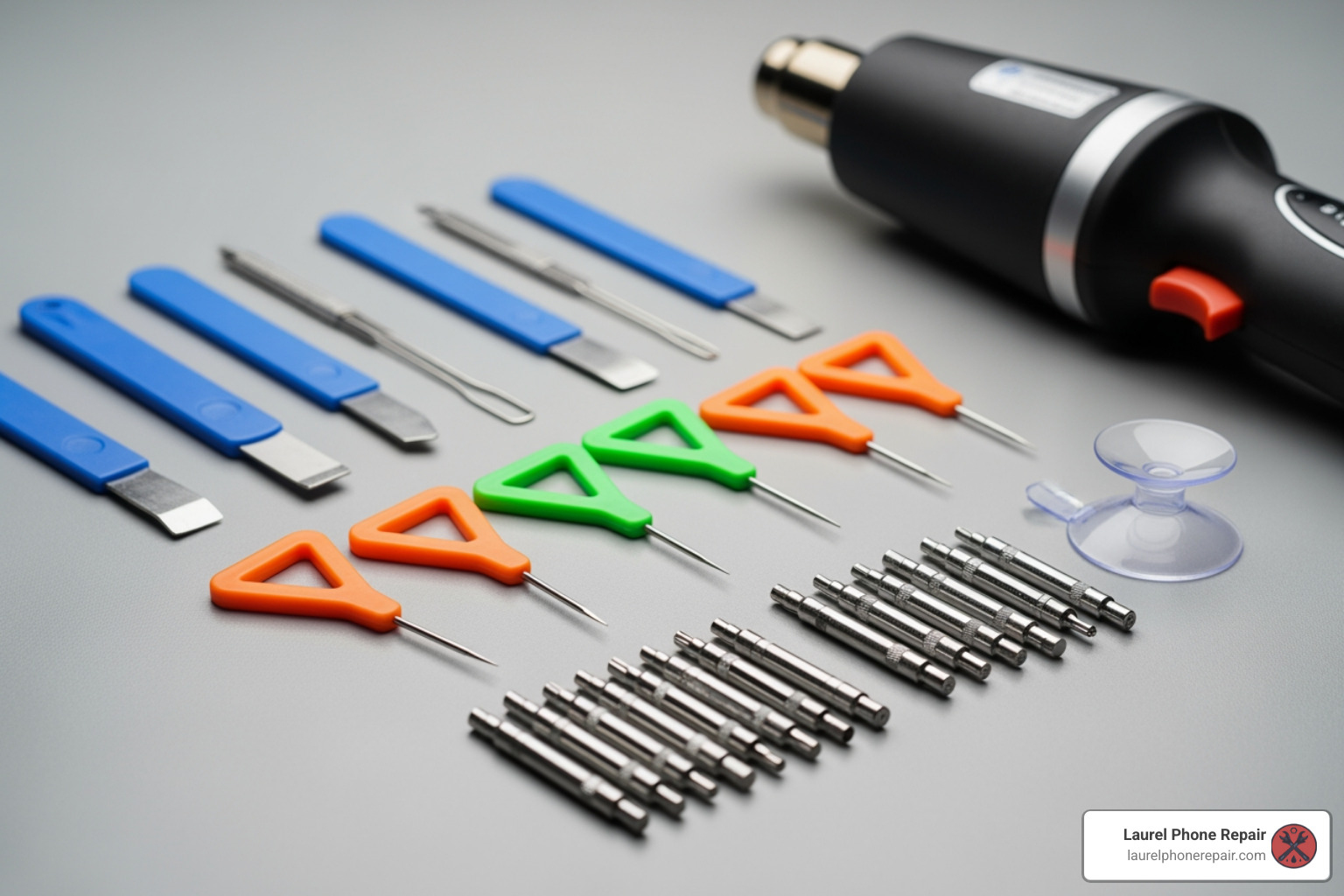
  • Tools Required: Heat gun, opening picks, Phillips screwdriver, spudger, suction cup
  • Difficulty Level: Moderate – requires careful disassembly of 24+ steps
  • Screen Types: OLED or LCD, with or without frame
  • Key Challenge: Strong adhesive and delicate components require patience

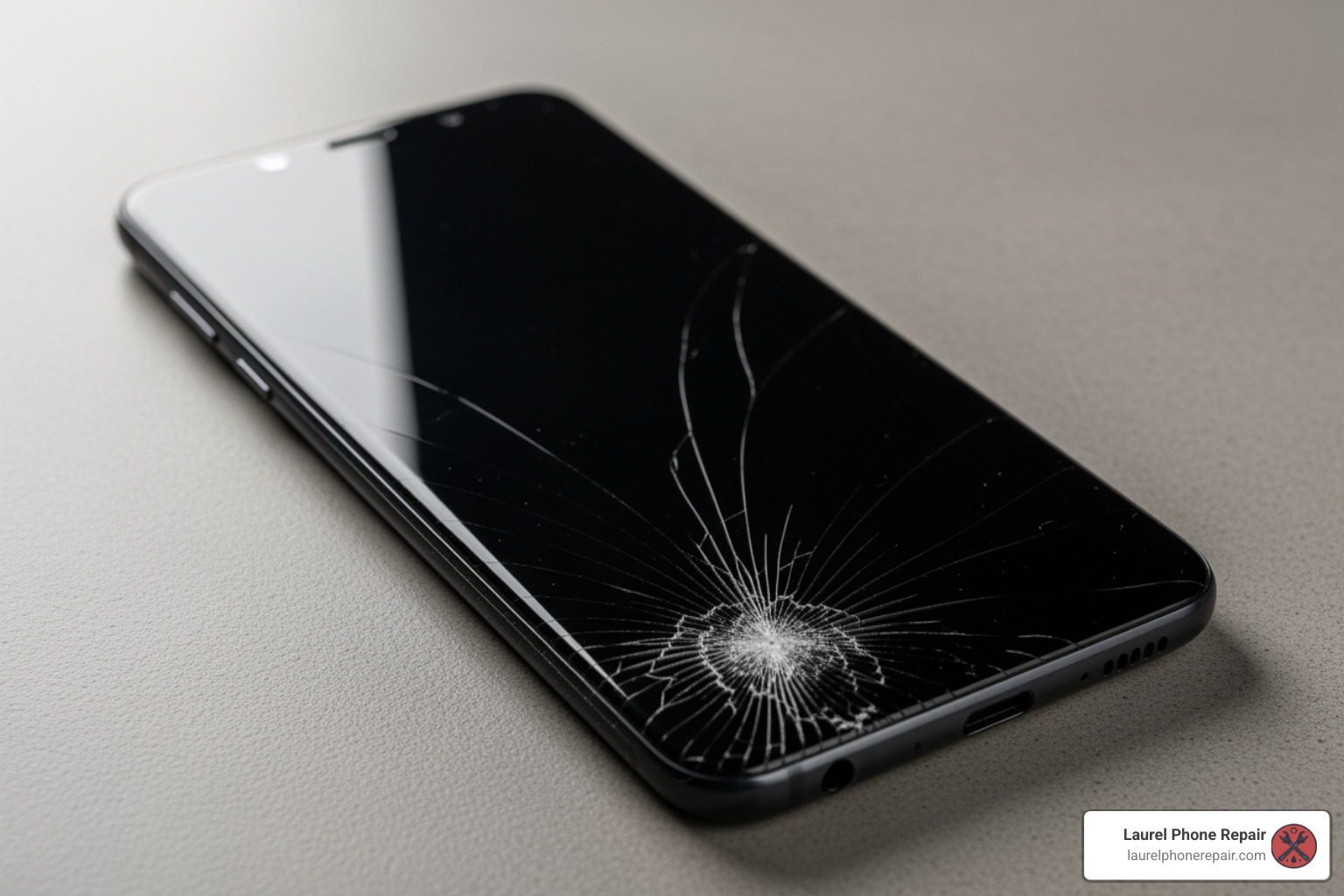
A cracked screen is frustrating. Shattered glass can cut your finger, or the display might show lines, black spots, or be completely unresponsive. The good news is that the Galaxy A70’s screen can be replaced, and you have options.

The Galaxy A70’s plastic back cover makes it easier to open than many glass-backed phones. However, the screen is attached with strong adhesive, and the repair involves disconnecting the battery, removing the midframe, and transferring components. It requires the right tools, patience, and attention to detail.

I’m Ralph Harris, and with over 20 years in electronics repair and more than 500 Apple repair certifications, I’ve guided countless customers through Samsung Galaxy A70 screen replacement decisions and repairs. Whether you tackle this yourself or choose professional help depends on your comfort level with delicate electronics work.
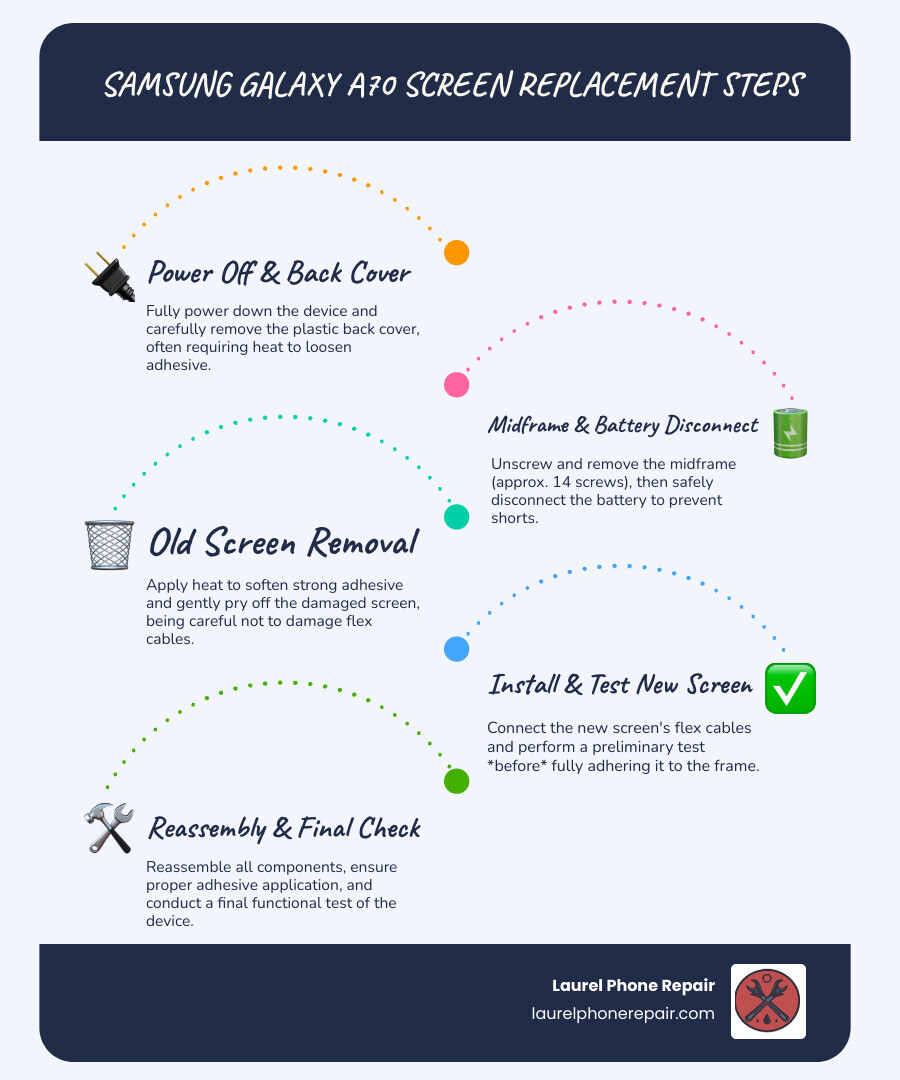
Infographic showing the complete Samsung Galaxy A70 screen replacement process, including tools needed (heat gun, opening picks, Phillips screwdriver, spudger, suction cup, tweezers), key steps (discharge battery below 25%, remove back cover, remove midframe with 14 screws, disconnect battery, remove old screen, install new screen, reassemble), time required (1-3 hours DIY vs under 2 hours professional), cost comparison ($12-115 parts only vs professional service pricing), and safety warnings (battery puncture risk, heat damage to AMOLED, maintain proper adhesive for water resistance) - samsung galaxy a70 screen replacement infographic infographic-line-5-steps-blues-accent_colors

How to Know If Your A70 Screen Needs Replacement

Before diving into the “how-to,” let’s determine if a Samsung Galaxy A70 screen replacement is what your phone needs. Sometimes, a display issue is a minor glitch, but often, it’s a clear sign that a new screen is in order.

Here are the common issues that typically require a screen replacement:

  • Physical Damage: This is the most obvious one. If your phone took a tumble and now has:

    • Cracks or Shattered Glass: Even minor cracks can spread, compromising the screen’s integrity and making it unsafe to use.
    • Deep Scratches: While not always requiring replacement, deep scratches can impair visibility and user experience.
  • Visual Malfunctions: Sometimes the glass is fine, but the display itself is failing. These can include:

    • Black Spots: Dark blotches on the screen, often a sign of damage to the AMOLED panel.
    • Colored Lines: Vertical or horizontal lines (green, pink, white) that don’t go away, indicating internal display damage.
    • Dead Pixels: Tiny black or colored dots that remain static.
    • Flickering Screen: The display constantly flashes or dims, making it difficult to use.
  • Touchscreen Issues: The visual might be perfect, but your phone won’t respond to your commands:

    • Unresponsive Touch: Parts of or the entire screen no longer register your touches.
    • Ghost Touches: The screen acts on its own, opening apps or swiping without your input.
    • Black Screen with Sound/Vibration: Your phone seems on (you hear sounds or feel vibrations), but the screen is black. This usually means the display has failed, even if the phone’s internals are working.
    • Backlight Failure: The screen is extremely dim, but you can faintly see images when shining a bright light on it. This means the display’s backlight has failed.

If your Samsung Galaxy A70 is exhibiting any of these symptoms, especially after a drop, it’s highly likely that a full screen replacement is needed to bring it back to life.

DIY vs. Professional Repair: Making the Right Choice

When faced with a broken Samsung Galaxy A70 screen, you have two main paths: a DIY Samsung Galaxy A70 screen replacement or a professional repair from our skilled technicians. Both have their merits, and the best choice depends on your comfort level, budget, and desired outcome.

Let’s weigh the options:

Feature DIY Screen Replacement Professional Screen Replacement
Cost Savings Potentially lower, as you only pay for parts (typically $12.00 to $114.95 for the part itself). Higher upfront cost, but includes labor and often a warranty.
Technical Skill Requires moderate to advanced technical skills, patience, and attention to detail. No technical skill required from you; performed by experienced technicians.
Time Commitment Can take 1-3 hours, plus time for part sourcing and troubleshooting. Often completed same-day, sometimes in a few short hours.
Risk of Damage High risk of damaging other components (battery, flex cables, frame) if inexperienced. Minimal risk to you; technicians are trained to handle delicate components.
Part Quality Varies greatly depending on your source; can range from low-quality aftermarket to OEM-grade. Reputable services use quality parts, often OEM-equivalent or approved.
Warranty Typically none on your labor; part warranty depends on the seller. Most professional repairs come with a limited warranty (e.g., 1-year).
Tools Required Purchase or acquire specialized tools (heat gun, prying tools, screwdrivers, etc.). Technicians have all necessary professional-grade tools.
Expertise You are the expert; relies on following guides precisely. Benefit from certified technicians with extensive experience.
Convenience Flexible schedule, but can be frustrating if issues arise. Drop off your device and pick it up when ready.

The DIY route means taking on all responsibility and risk. While parts for a Samsung Galaxy A70 screen replacement cost between $12.00 and $114.95 online, you must also factor in the cost of specialized tools and the several hours a complex repair can take.

On the other hand, professional repair services offer peace of mind. Our experienced technicians in Laurel, Hattiesburg, Jackson, and Jones County, Mississippi, are well-versed in these repairs. We use high-quality parts, and our work includes a warranty. Most Samsung Galaxy A70 screen replacement jobs are completed the same day, often in a few hours. We also provide free diagnostics, so you know the cost before any work begins.

Your Guide to a DIY Samsung Galaxy A70 Screen Replacement

If you’re feeling adventurous and decide to tackle the Samsung Galaxy A70 screen replacement yourself, we’re here to guide you. While we recommend professional service for this complex repair, we understand the desire to learn and save money. Patience and precision are key!
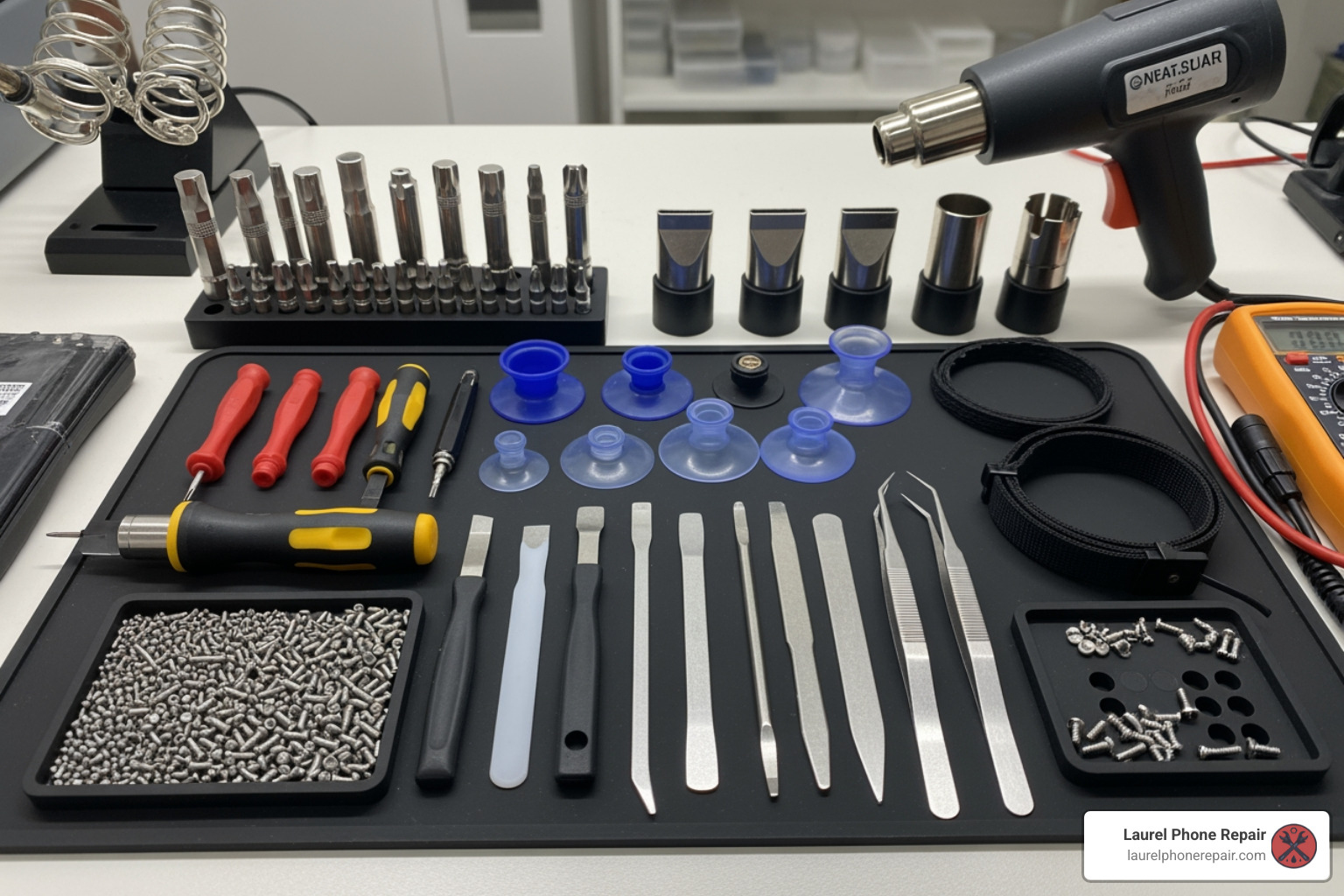
complete phone repair tool kit - samsung galaxy a70 screen replacement

The DIY process involves careful disassembly, component transfer, and reassembly. It’s not a simple swap, but with the right tools and a detailed guide, it’s achievable.

Tools and Parts Needed for the Repair

To perform a successful Samsung Galaxy A70 screen replacement, you’ll need specific tools. Using improper tools can cause more damage.

Here’s a list of essential tools and parts you’ll typically need:

  • Phillips PH00 Screwdriver: For the fourteen 4.0 mm-long screws securing the midframe.
  • Opening Picks (Plastic or Thin Metal): To separate glued components and slice through adhesive.
  • Spudger (Plastic Prying Tool): Essential for disconnecting delicate flex cables without causing damage.
  • Suction Cup: To create a gap between the screen or back cover and the frame.
  • Heat Gun or iOpener: Heat is vital for softening the strong adhesive. A hair dryer on low can also work. Be careful not to overheat the device.
  • Tweezers: Useful for handling tiny screws and cables.
  • Replacement Adhesive: New pre-cut adhesive strips or strong double-sided tape to re-seal the phone.
  • Isopropyl Alcohol (>90%): For cleaning old adhesive residue to ensure a strong bond.
  • Replacement Screen: Ensure it’s compatible with your Samsung Galaxy A70 (model A705FN/DS).

Choosing the Right Screen: With Frame vs. Without

One of the most important decisions is whether to get a screen “with frame” or “without frame.” This significantly impacts the repair’s difficulty.

  • Screen Without Frame (Screen Only): This cheaper option is just the glass and display panel. It’s more challenging as you must separate the old, broken screen from its frame and adhere the new one, increasing the risk of damage during installation.
  • Screen With Frame (Screen Assembly): This option includes the display and a new midframe. Though more expensive, it greatly simplifies the repair by avoiding the difficult screen separation step. You simply transfer your phone’s internal components into the new assembly. This is the recommended choice for most DIYers.

OLED vs. LCD: The original A70 has a vibrant AMOLED display. When buying a replacement, you’ll find both types.

  • OLED (AMOLED): These match the original screen’s quality with vibrant colors and deep blacks but are more expensive.
  • LCD: These cheaper alternatives will function but may lack the visual quality of the original.

OEM Parts vs. Aftermarket Parts:

  • OEM (Original Equipment Manufacturer) Parts: Made by or for Samsung, they offer the best quality and compatibility but are the most expensive and hardest to find.
  • Aftermarket Parts: Made by third-party companies. Quality varies widely, from high-grade parts that perform close to OEM to lower-quality ones that may affect color, brightness, or touch response. Always check seller reviews.
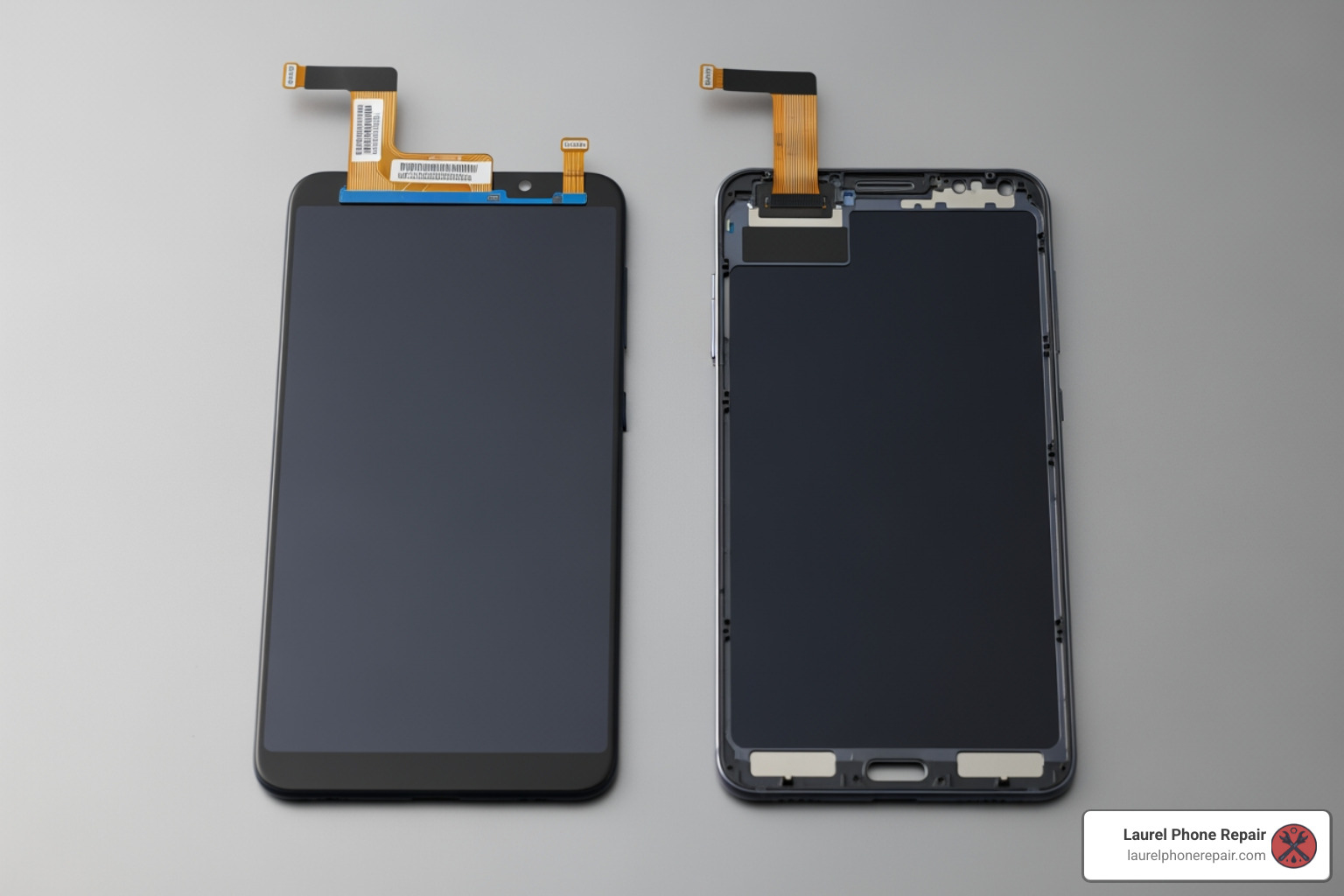
difference between a screen with a frame and one without a frame - samsung galaxy a70 screen replacement

Key Steps for a DIY Samsung Galaxy A70 Screen Replacement

Performing a Samsung Galaxy A70 screen replacement is a multi-step process. This is a simplified overview. We strongly recommend following a detailed visual guide, like the Samsung Galaxy A70 Screen Replacement guide on iFixit, before you begin.

  1. Safety First: Power Off and Discharge Battery: Switch off your device. It’s recommended to discharge the battery below 25% before starting to reduce the risk of fire if the battery is accidentally punctured.
  2. Remove the SIM Tray: Use a SIM eject tool to remove the SIM card tray.
  3. Remove the Back Cover: The A70 has a plastic back. Apply heat to soften the adhesive, use a suction cup to create a gap, then insert opening picks to slice through the adhesive around the perimeter.
  4. Remove the Midframe: Unscrew the fourteen 4.0 mm-long Phillips screws securing the midframe. Then, use an opening pick to carefully unclip it from the phone assembly.
  5. Disconnect the Battery: Use a plastic spudger to gently pry the battery connector straight up from the motherboard.
  6. Remove the Old Screen: This is a delicate step. Apply heat to the front of the screen to soften the adhesive. Use a suction cup and opening picks to carefully slice the adhesive around the edges. Be extremely careful near the front camera and flex cables. Once free, thread the display cable through the frame to remove the old screen.
  7. Prepare the New Screen: If using a screen without a frame, you may need to transfer small components (like the earpiece speaker) from your old screen. Clean old adhesive from the frame with isopropyl alcohol.
  8. Install the New Screen: Connect the new screen’s flex cable. Apply new adhesive to the frame and gently set the new screen into place, ensuring it’s aligned.
  9. Reassembly: Reconnect the battery. Reinstall the midframe and all its screws. Reattach the back cover with new adhesive.
  10. Test Before Final Seal: Before sealing the back cover, power on the phone and test the new screen’s functionality (touch, display, colors). Use the diagnostic menu by dialing *#0*# in the phone app.

Important Warnings Before You Start Your Repair

A DIY Samsung Galaxy A70 screen replacement can be rewarding, but it comes with significant risks. Be fully aware of the potential pitfalls before you begin.

  1. Battery Safety is Critical:

    • Discharge Below 25%: Always discharge your phone’s battery below 25% before starting. Lithium-ion batteries are volatile.
    • Puncturing Risk: Puncturing the battery can cause it to swell, overheat, or even catch fire. Never use sharp metal tools to pry at it. If you see a swollen battery, stop the repair and seek professional help immediately; they are extremely dangerous.
    • Heat Damage: While heat is needed to loosen adhesive, never apply it directly to the battery.
  2. Heat Damage to AMOLED Displays: Your Galaxy A70’s AMOLED display is sensitive to excessive heat. Too much heat can permanently damage it. Apply heat evenly and in short bursts.

  3. Damaging Flex Cables: Your phone contains numerous delicate flex cables that are easily torn. Always use plastic spudgers when working near connectors and pry gently.

  4. Loss of Water Resistance: Opening the phone breaks the factory water-resistant seals. Without new, high-quality adhesive, your phone will lose its water resistance and become vulnerable to liquid damage.

  5. Deformed Frame Issues: Installing a new screen into a bent frame can cause the new display to crack or malfunction. If your frame is deformed, it’s best to use a replacement screen that includes a new frame or seek professional help.

  6. Test Before Sealing: After installing the new screen but before re-adhering the back cover, power on your phone and thoroughly test all functions. It’s much easier to fix an issue before the phone is completely sealed up.

Frequently Asked Questions about the Samsung Galaxy A70 Screen Replacement

We often hear similar questions from customers considering a Samsung Galaxy A70 screen replacement. Let’s address some of the most common ones.

How much does a Samsung Galaxy A70 screen replacement cost?

The cost varies significantly depending on the repair path and parts used.

  • DIY Parts Cost: The replacement part itself can cost anywhere from $19.00 to $115.00, depending on quality and whether it includes a frame. This price doesn’t include specialized tools you may need to buy.
  • Professional Repair Cost: This includes the part and labor. We offer competitive pricing and provide a free diagnostic with a transparent quote before any work begins, so you know the exact cost upfront.

Factors impacting the cost include:

  • Type of Screen: OLED (AMOLED) screens are more expensive than LCDs.
  • With or Without Frame: Screens with a new midframe cost more but simplify the repair.
  • Part Quality: OEM-grade parts are at the higher end; aftermarket quality varies.
  • Labor Charges: This covers the technician’s expertise and time.

Can I replace just the glass on my A70?

While it seems appealing, we advise against replacing just the glass for DIYers.

Here’s why:

  • Digitizer Fusion: The A70’s outer glass, touch digitizer, and AMOLED display are a single fused unit.
  • High Difficulty and Special Equipment: Separating the glass requires specialized equipment and expert skill to avoid damaging the delicate AMOLED panel. It’s a difficult, high-risk process that is not recommended for DIY repair.
  • Risk of Damage: Attempting this separation carries a very high risk of permanently damaging the display, which would then require a full assembly replacement anyway.

For these reasons, a full screen assembly replacement (glass, digitizer, and display) is almost always the recommended method for a reliable Samsung Galaxy A70 screen replacement.

How long does a screen replacement take?

The time required depends on who is doing the repair.

  • DIY Time: For a first-timer, expect the repair to take 1 to 3 hours. This can vary based on your experience and any challenges you encounter. This doesn’t include time for sourcing parts.
  • Professional Repair Time: Our skilled technicians can often complete the replacement the same day, sometimes in just a few hours. With the right tools and parts on hand, we provide a quick and reliable turnaround, often under 2 hours. We understand you need your phone back quickly and strive to provide fast service in Laurel, Hattiesburg, Jackson, and Jones County, Mississippi.

Get Your A70 Screen Replaced by the Pros

While a DIY Samsung Galaxy A70 screen replacement is possible, it’s a challenging project with many risks. Delicate components, strong adhesives, and the need for specialized tools can lead to frustration and further damage.

If you’re not comfortable with the risks, don’t have the specialized tools, or simply value your time and peace of mind, choosing a professional repair is the smartest decision.

Here at Laurel Phone Repair, we specialize in quick, affordable, and reliable phone repairs. Our experienced technicians are experts in Samsung devices, including the Galaxy A70. When you choose us for your Samsung Galaxy A70 screen replacement, you benefit from:

  • Expert Technicians: Our team is highly trained and experienced in handling delicate electronics. We know the ins and outs of the A70, ensuring your repair is done right the first time.
  • Quality Parts Guarantee: We use transparent part options, offering high-quality OEM-grade or approved aftermarket parts to restore your phone’s display to its original brilliance and functionality.
  • Fast Turnaround: We understand you can’t be without your phone for long. Many of our screen repairs are completed as soon as the same day, getting you back to your life with minimal disruption.
  • Warranty on Repairs: We stand behind our work. All our repairs come with a warranty, giving you peace of mind that your investment is protected.
  • Convenient Locations: With locations in Laurel, Hattiesburg, Jackson, and Jones County, Mississippi, a trusted repair is always within reach.

Don’t let a broken screen keep you disconnected. Let our professionals handle your Samsung Galaxy A70 screen replacement with expertise and care.
Get a fast, professional screen repair today

Get More Playtime: Easy RC Car Battery Replacement and Upgrade Tips

RC Car Battery Replacement: 5 Easy Upgrades

Why RC Car Battery Replacement Can Transform Your Ride

RC car battery replacement is one of the fastest ways to get more speed, longer run times, and better performance from your vehicle. Here’s a quick look at how to do it:

Quick Steps for RC Car Battery Replacement:

  1. Identify your current battery type (NiMH or LiPo) and voltage
  2. Choose a replacement with matching voltage and compatible connector
  3. Check that the new pack fits your battery tray
  4. Connect using the correct polarity (red = positive, black = negative)
  5. Charge with the right charger before use

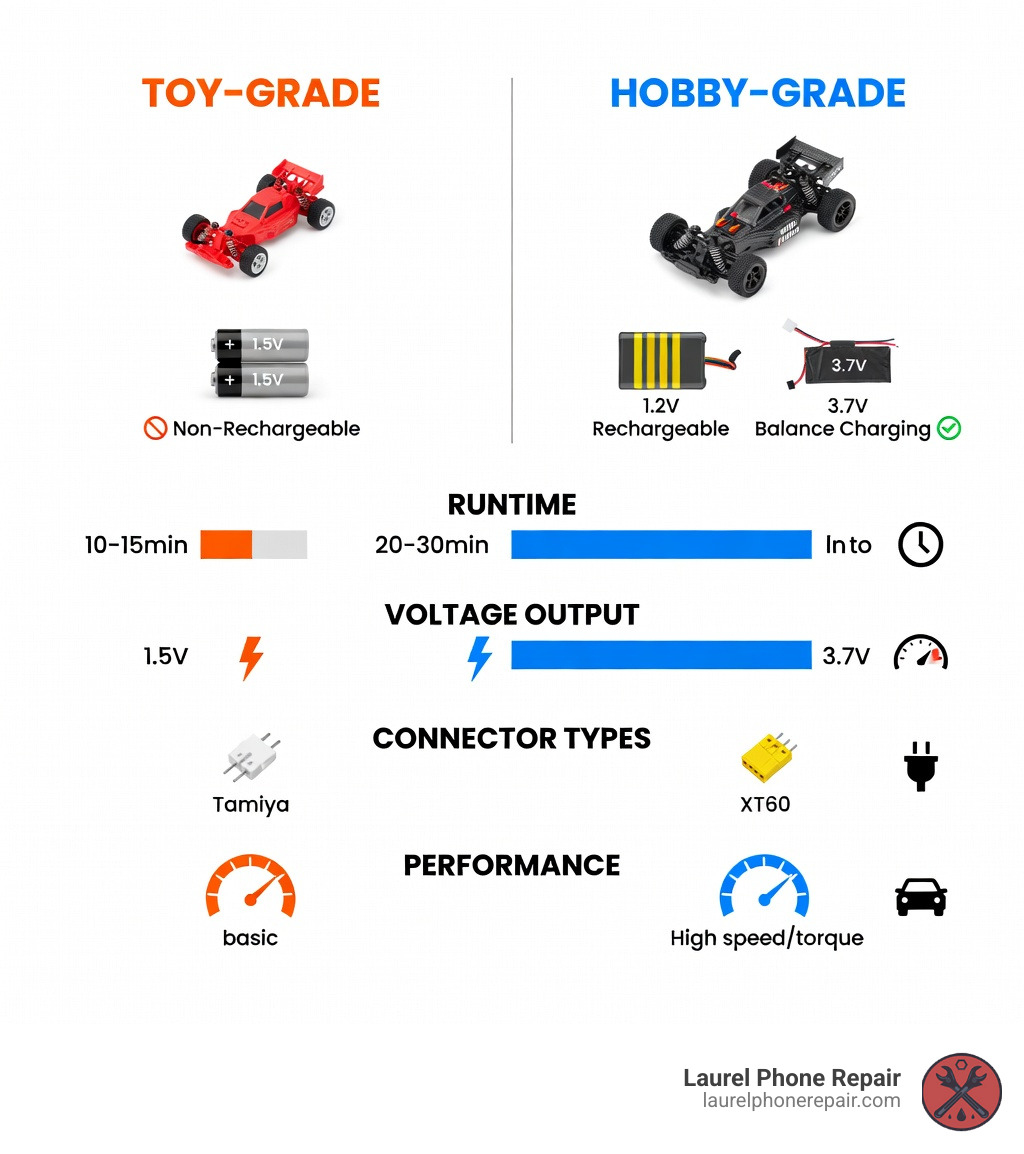
Whether you’ve got a budget toy-grade car running on AA batteries or a hobby-grade machine with a dedicated pack, the right battery swap makes a real difference. RC cars chew through weak batteries fast – and when performance starts to drop, it’s usually the power source to blame.

LiPo (Lithium Polymer) and NiMH (Nickel-Metal Hydride) are the two most common options. Each has trade-offs in safety, weight, and cost that we’ll break down in detail below.

I’m Ralph Harris, an electronics repair specialist with over 20 years of experience and more than 500 device repair certifications – and RC car battery replacement is just one of the many areas where understanding battery chemistry and proper wiring technique makes all the difference. Let’s dig into everything you need to know to upgrade your ride safely.

Infographic comparing toy-grade vs hobby-grade RC car power systems: toy-grade uses AA alkaline batteries at 1.5V per cell with no recharging, hobby-grade uses NiMH packs at 1.2V per cell or LiPo packs at 3.7V per cell with balance charging; key differences shown include runtime, voltage output, connector types, and performance ratings - RC car battery replacement infographic

Quick RC car battery replacement terms:

Understanding Your Power Source: NiMH vs. LiPo

When you dive into RC car battery replacement, you’ll quickly realize that not all batteries are created equal. The two heavy hitters in the hobby are Nickel-Metal Hydride (NiMH) and Lithium Polymer (LiPo). Choosing between them is the first step in any upgrade.

Think of NiMH as the reliable “old school” technology. These packs are rugged, heavy, and very safe. They are great for beginners because they don’t require a lot of special care. On the other hand, LiPo batteries are the high-performance “supercars” of the battery world. They are much lighter and can store significantly more power for the same size, giving your RC car a massive boost in “punch” and speed.

Feature NiMH (Nickel-Metal Hydride) LiPo (Lithium Polymer)
Safety Very Safe / Rugged Requires Care / Fire Risk if Mistreated
Weight Heavy Light
Energy Density Moderate High
Memory Effect None None
Voltage Drop Gradual (slowing down) Consistent until empty
Cost Budget-friendly Mid-to-High

According to Battery Basics, LiPo batteries sustain higher voltage for a longer period during your run. While a NiMH battery will make your car feel slower and slower as the battery dies, a LiPo keeps you at full speed until the very end. If you are looking for a more permanent solution for other devices, you might also be interested in more info about battery repair services we offer for everyday electronics.

Performance and Weight Differences

The difference in “punch” is real. NiMH cells are rated at 1.2V per cell, while LiPo cells are 3.7V nominal. Because LiPo batteries have a much better weight-to-power ratio, your car doesn’t just have more power—it’s also carrying less “dead weight.” This means better jumps, faster cornering, and higher top speeds. If you’re racing in Laurel or Hattiesburg, that weight difference can be the gap between first and second place.

Safety and Durability Considerations

NiMH batteries are incredibly beginner-friendly. You can drop them, bump them, and charge them with a standard charger without much worry. LiPo batteries, however, are sensitive. If they are punctured or overcharged, they can enter “thermal runaway,” which is a fancy way of saying they might catch fire. This is why we always recommend using fire-retardant bags during charging and storage. Always check Battery Basics for the latest safety protocols to keep your home in Jackson or Jones County safe.

Choosing the Right Specs for an RC Car Battery Replacement

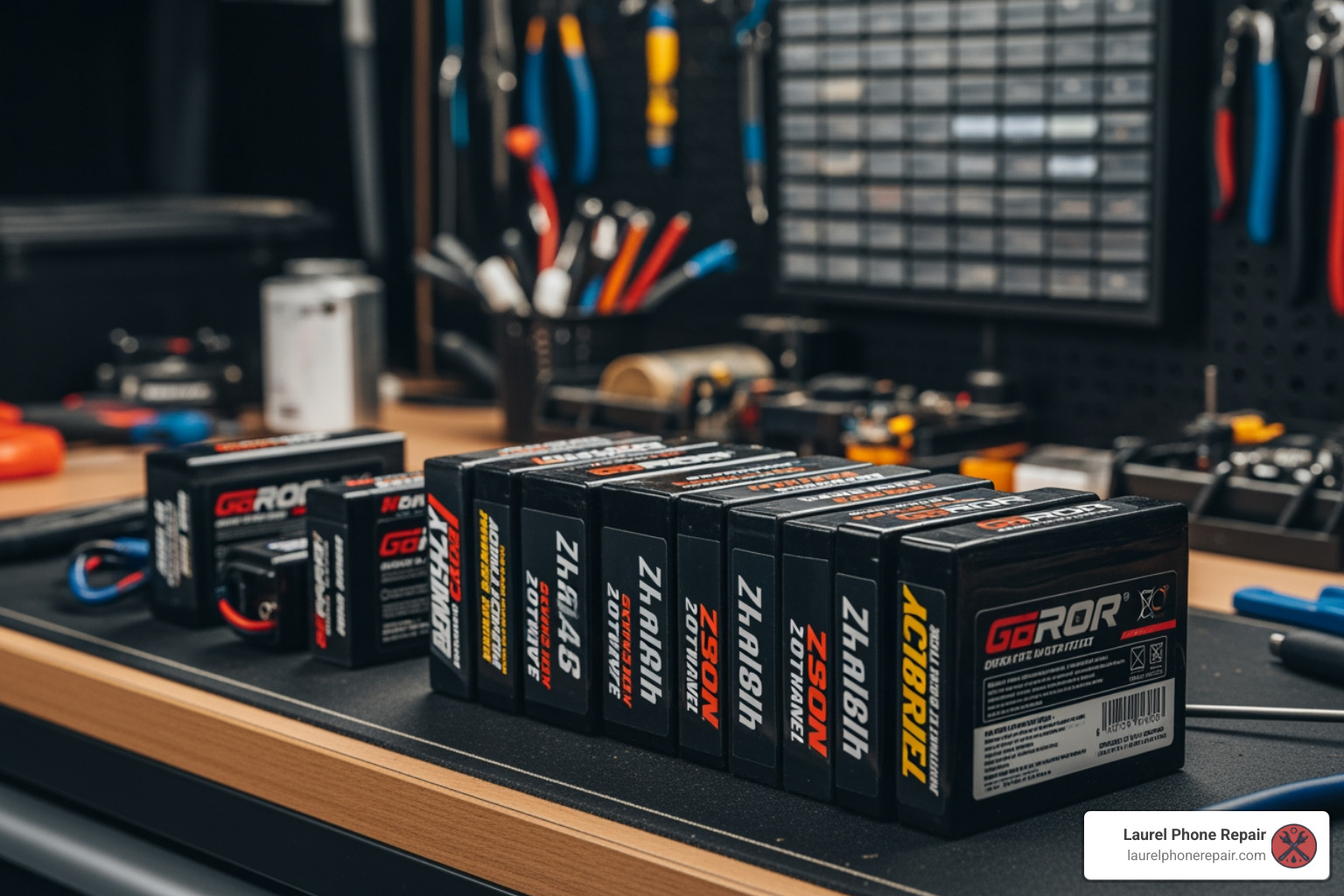
Various RC battery packs with labels highlighted showing mAh, Voltage, and C-ratings - RC car battery replacement

Before you buy a new pack, you need to read the label. Getting the wrong specs for an RC car battery replacement can do more than just make your car slow—it can actually fry your electronics. If you’re worried about the cost of making a mistake, you can learn about battery replacement costs for various devices to see why doing it right the first time is so important.

Determining Voltage and Capacity for RC Car Battery Replacement

Voltage (V) equals speed. Capacity (mAh) equals runtime.

  • Voltage: Most 1/10 scale cars use a 2S (7.4V) or 3S (11.1V) LiPo configuration. If your car was designed for a 7.2V NiMH, a 2S LiPo is a perfect match. Jumping to a 3S might give you insane speed, but check your ESC (Electronic Speed Controller) compatibility first. Over-volting can lead to permanent motor damage.
  • Capacity: Measured in milliamp-hours (mAh). A 5000mAh battery will technically last twice as long as a 2500mAh battery. However, larger capacity usually means a physically larger and heavier battery. Make sure the dimensions fit your car’s battery tray!

Matching Connectors for Your RC Car Battery Replacement

The connector is the “plug” that connects the battery to the car. Common types include:

  • Tamiya: The classic white plug. Good for low power, but they can melt under high heat.
  • XT60/XT90: Very popular, high-efficiency gold-plated connectors.
  • Deans (T-Plug): A compact favorite for many hobbyists.
  • Traxxas iD / IC3: Specialized connectors that often include “Smart” technology to help the charger recognize the battery.

Avoid using too many adapters. Every adapter adds resistance, which creates heat and slows you down. It’s always better to solder the correct connector directly onto your ESC.

Understanding Discharge Ratings (C-Rating)

The “C-Rating” tells you how fast the battery can safely discharge its energy. A 30C battery is fine for a slow-moving rock crawler, but a high-speed “basher” or racing truck might need 50C or even 100C to handle the burst current required for big jumps and fast starts.

Step-by-Step Guide to RC Car Battery Replacement and Upgrades

Ready to get your hands dirty? For this RC car battery replacement or upgrade, you’ll need a few tools: a soldering iron, a Dremel tool (if you need to modify the chassis), a multimeter, wire strippers, and some heat shrink tubing. For more complex vehicle battery setups, you can always refer to a Car and Truck Battery Replacement Guide, though RC cars are much smaller and simpler!

Modifying the Chassis and Mounting

If you’ve bought a high-capacity battery that’s a bit too big for your tray, don’t panic. Many hobbyists use a Dremel to trim plastic tabs or expand the battery tray. If you’re working on a cheap toy-grade car, you can even mount a new battery in the spare tire space or on top of the chassis. Just remember: weight distribution matters. Try to keep the battery centered and low to prevent the car from flipping in corners. Use velcro straps or foam padding to make sure the battery doesn’t jiggle around—a loose battery is a damaged battery.

Wiring and Soldering Safety

This is where things get serious.

  1. Identify Polarity: Red is Positive (+), Black is Negative (-).
  2. Tinning: Apply a small amount of solder to both the wire and the connector terminal before joining them. This makes a much stronger bond.
  3. One at a Time: If you are changing a connector on a battery (which we don’t recommend for beginners), NEVER cut both wires at the same time. This will cause a short circuit, sparks, and potentially a fire.
  4. Insulate: Always slide your heat shrink tubing onto the wire before you solder. Once the joint is cool, slide it over the metal and shrink it with a heat gun or lighter to prevent shorts.

Identifying Terminals and Testing

Before you plug everything in, use a multimeter to check the voltage and ensure your polarity is correct. If you see a “minus” sign on your multimeter, your leads are backward! Once confirmed, do a “bench test.” Prop the car up so the wheels are off the ground, turn on the transmitter, and then plug in the battery. Give it a small amount of throttle to ensure everything is spinning the right way.

Safety First: Charging and Maintenance Best Practices

Charging is when most battery accidents happen. Whether you are in Laurel or Jackson, safety should be your top priority.

  • Use a LiPo-Compatible Charger: Never, ever use a NiMH charger on a LiPo battery. It will cause the battery to swell and catch fire.
  • Balance Charging: Always use the “Balance” function. This ensures that every cell in the battery (e.g., both cells in a 2S pack) is at the exact same voltage.
  • The 1C Rule: Generally, charge your battery at “1C.” If you have a 5000mAh battery, charge it at 5.0 Amps. Charging faster can shorten the battery’s life.
  • Never Leave Unattended: Always stay in the same room while charging.

Proper Storage and Longevity

If you aren’t going to use your RC car for more than a few days, you must put your batteries into “Storage Mode.” A LiPo battery should be stored at roughly 3.8V per cell (about 50% charge). Storing a LiPo fully charged or fully depleted will cause it to “puff” or lose capacity. Keep them in a cool, dry place. A quick monthly check on their voltage will help them last for years.

Handling Damaged or Swollen Packs

If your battery looks like a bag of potato chips—swollen or “puffed”—it’s time to say goodbye. Swelling is a sign that the internal chemistry has broken down and gas has built up.

  • Stop using it immediately.
  • Do not attempt to “pop” the swelling.
  • Place it in a fire-safe container.
  • To dispose of it, many hobbyists submerge the battery in a bucket of salt water for several days to fully discharge it before taking it to a local recycling center in Mississippi.

Troubleshooting Common Battery Issues

Is your car acting up? Here are some common power-related problems:

  • Voltage Drop: If your car cuts out during hard acceleration, your battery might not have a high enough C-rating, or the battery is reaching the end of its life.
  • Charger Errors: “Connection Break” usually means a wire is loose in your connector. “Cell Voltage Error” means one cell is much lower than the others—often a sign of a failing pack.
  • Overheating: If the battery is hot to the touch after a run, you are pushing it too hard. Consider a higher C-rating or check for mechanical binding in your car’s drivetrain.

For those interested in how larger vehicle batteries compare, checking out a Car and Truck Battery Replacement Guide can provide perspective on how different scales of power systems are managed.

Frequently Asked Questions about RC Car Batteries

Can I put a LiPo battery in a car that came with NiMH?

Yes, usually! However, you must ensure your ESC has a “Low Voltage Cutoff” (LVC). LiPo batteries can be damaged if their voltage drops too low. If your ESC doesn’t have this feature, you can buy a cheap “LiPo Alarm” that plugs into the battery’s balance lead.

Why is my RC car battery getting hot during use?

A little warmth is normal, but “hot” is bad. This usually means the motor is drawing more current than the battery can safely provide. Upgrading to a battery with a higher mAh or C-rating often solves this.

How long does a typical RC car battery last?

With proper care (storage charging and balance charging), a LiPo battery can last 200–300 cycles. A NiMH battery can last even longer but will eventually lose its “punch.”

Conclusion

Mastering RC car battery replacement is the “secret sauce” to taking your hobby to the next level. Whether you’re looking for a simple speed boost in Jones County or trying to win a local race in Hattiesburg, the right power setup makes all the difference. Remember to prioritize safety, match your connectors carefully, and always use a balance charger for LiPo packs.

At Laurel Phone Repair, we love all things tech. While we specialize in phones, tablets, and computers, we understand the thrill of a DIY upgrade. If you’ve got other gadgets that need a power boost—from phones to specialized electronics—our experienced technicians are here to help with transparent options and high-quality parts. Schedule your battery repair today and let’s keep your gear running at peak performance!

Is Your PC Acting Up? A Guide to Computer Motherboard Repair

Computer Motherboard Repair: Ultimate Guide 2025

Why Understanding Computer Motherboard Repair Matters

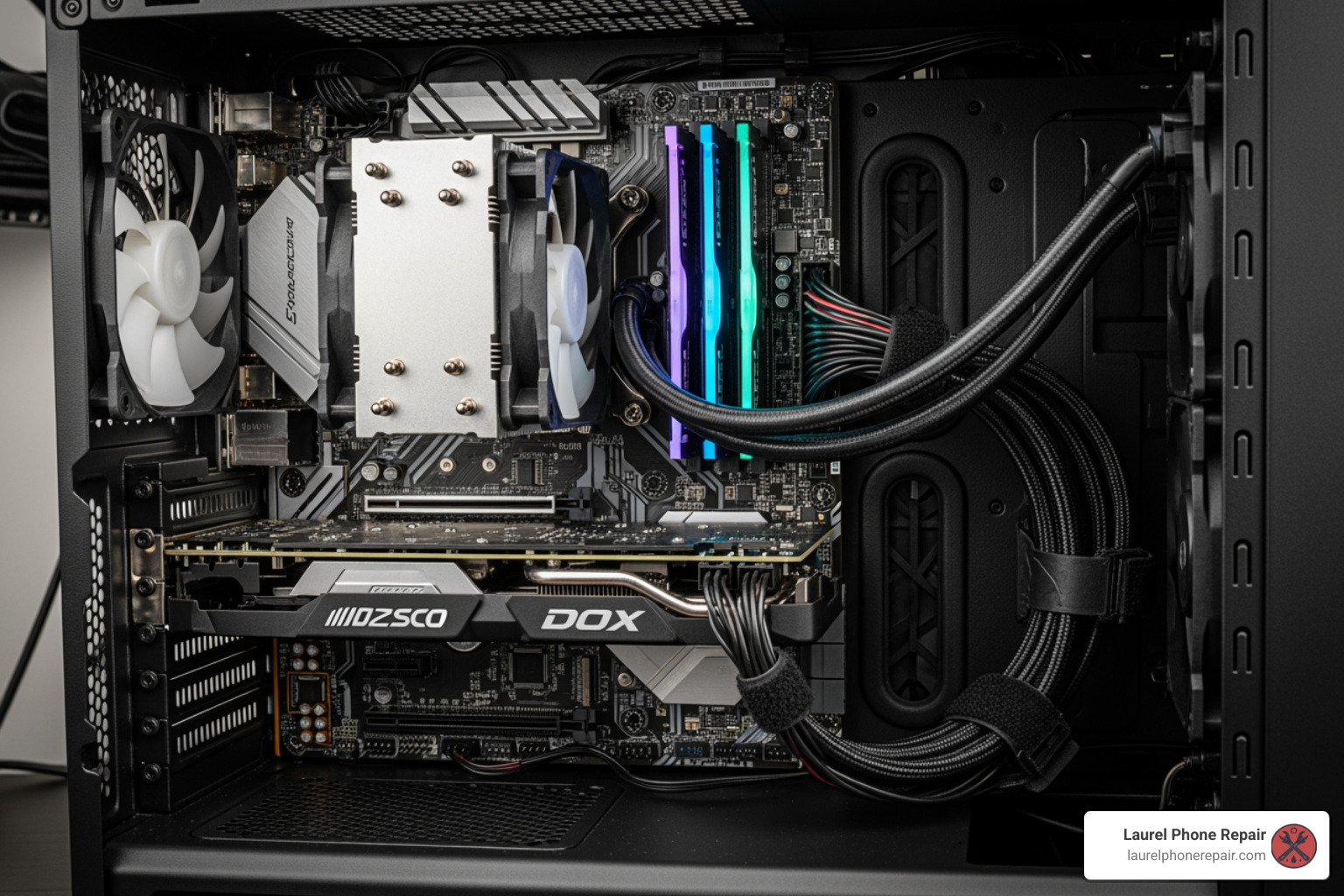
computer motherboard inside open PC case - computer motherboard repair

Computer motherboard repair addresses the core component that connects and controls every part of your PC. When your motherboard fails, your entire system becomes unusable, making it crucial to understand what can be fixed.

Quick Answer: Can Motherboards Be Repaired?

Yes, many motherboard issues can be repaired. Common problems include:

  • Faulty capacitors – Often swollen or leaking, these can be replaced through soldering.
  • Failed ports – USB, audio, or charging ports can be repaired using microsoldering.
  • BIOS corruption – Can be fixed by reprogramming or replacing the BIOS chip.
  • Power issues – Voltage regulator modules (VRM) can often be repaired.
  • Liquid damage – Professional ultrasonic cleaning can save water-damaged boards.

Repair costs typically range from $80-$140 for labor, plus parts, while replacement boards can cost $50-$200+ depending on your system.

Think of your motherboard as your computer’s nervous system. It’s the main circuit board connecting your processor, memory, storage, and every other component. When it fails, everything stops. You might see a black screen, experience random shutdowns, hear strange beeps, or find that your USB devices no longer work. These symptoms often point to motherboard problems, but they don’t always mean you need a new computer.

Over time, components like capacitors can fail, ports can stop working, or circuits can be damaged by heat, power surges, or liquid spills. The good news is that many of these issues are repairable. With professional expertise, you can often fix the problem for less than the cost of a replacement board. Understanding what can be fixed can save you hundreds of dollars.

I’m Ralph Harris, and with over 20 years of experience in electronics repair, including more than 500 Apple repair certifications, I’ve completed countless computer motherboard repair projects. Let me walk you through identifying and resolving motherboard problems.

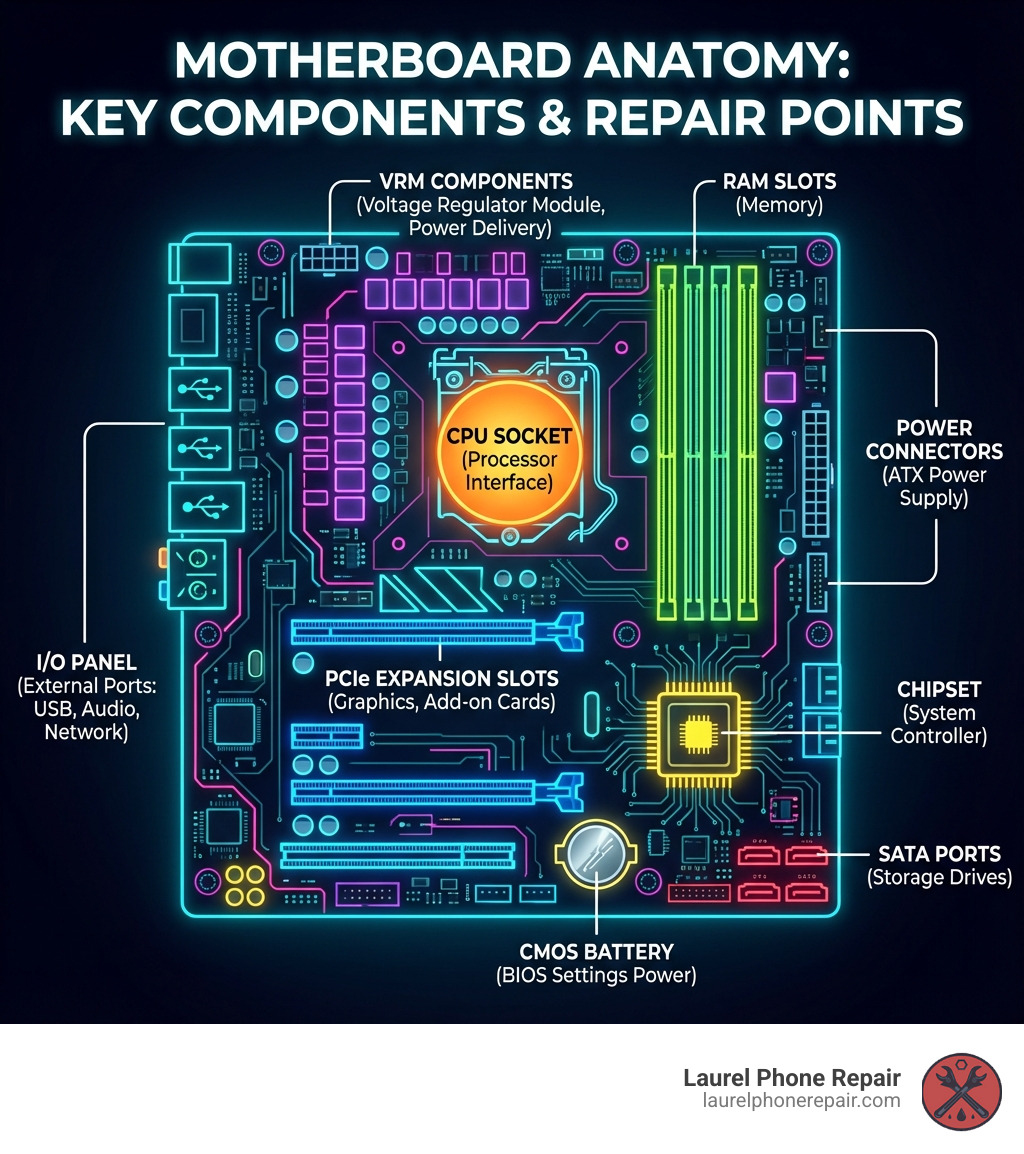
infographic showing motherboard anatomy with labeled components: CPU socket in center, RAM slots to the right, PCIe expansion slots below, SATA ports for storage, power connectors, chipset, I/O panel with USB and audio ports, CMOS battery, and VRM components near CPU - computer motherboard repair infographic

Spotting the Signs: Is Your Motherboard Failing?

When your computer starts acting strangely, it’s easy to jump to conclusions. But often, the core issue lies with the motherboard. Recognizing the signs of a failing motherboard early can save you a lot of headaches (and potentially data!).

computer screen showing a Blue Screen of Death (BSOD) - computer motherboard repair

Common Symptoms of a Dying Motherboard

Here are the tell-tale signs that your PC’s central hub might be on the fritz:

  • No Power or Black Screen on Startup: You press the power button, but nothing happens, or fans spin for a second then stop. For laptops, this is a very common sign of motherboard failure.
  • Startup Fails After a Few Minutes: The PC shows signs of life (lights, fan spin) but then shuts down, leaving a black screen.
  • Beeping or High-Pitched Sounds: The computer emits a series of beeps (POST codes) on startup with no display, which can indicate the specific problem.
  • Distorted or Scrambled Video: The screen shows strange colors, lines, or scrambled graphics, pointing to an issue with the motherboard’s video processing.
  • Random Freezing or Crashing: Frequent, unexplained system instability, including the Blue Screen of Death (BSOD), can be a motherboard symptom.
  • Peripherals Not Working: USB ports, audio jacks, or the Ethernet port suddenly stop working, and driver updates don’t help.
  • Visual Damage or Burning Smell: Look for swollen or leaking capacitors on the board. A burning smell is a clear sign of an electrical component shorting out.

Pinpointing the Problem: Basic Diagnostic Steps

Before assuming the worst, try these basic steps to confirm if the motherboard is the culprit:

  1. Power Supply Check: Ensure the main 20/24-pin and 4/8-pin CPU power connectors are securely seated.
  2. Reseat Components: Gently reseat your RAM sticks, graphics card, and other expansion cards to ensure a solid connection.
  3. Boot with Minimal Hardware: Remove all non-essential components. If the system boots, add parts back one by one to find the faulty one.
  4. Check for Loose Cables: Make sure all data and power cables are firmly connected.
  5. Listen for POST Beep Codes: If there’s no display, listen for beeps during startup and consult your motherboard’s manual to decipher them.

If these steps don’t help, it’s time for professional help. Our Device Diagnostics service offers a free initial check.

The Most Common Motherboard Failures Explained

Some failures are more common than others:

  • Capacitor Failure: Swollen or leaky capacitors cause unstable power delivery, leading to crashes or failure to start.
  • BIOS/UEFI Corruption: If the startup firmware becomes corrupted from a failed update or power surge, your PC won’t boot.
  • Voltage Regulator Module (VRM) Issues: Failed VRMs can’t deliver stable power to the CPU, causing instability or a complete lack of power.
  • Physical Damage: Bent pins, damaged slots, or cracks in the board’s traces from improper handling can disrupt critical connections.
  • Short Circuits: A loose screw or contact with the PC case can cause a short circuit, often resulting in an immediate shutdown.
  • Failed I/O Ports: USB, audio, or network ports can fail due to physical stress or electrical issues.

Causes and Prevention: Protecting Your PC’s Core

Understanding why motherboards fail is the first step in preventing it. Many common culprits are entirely avoidable with a little care and attention.

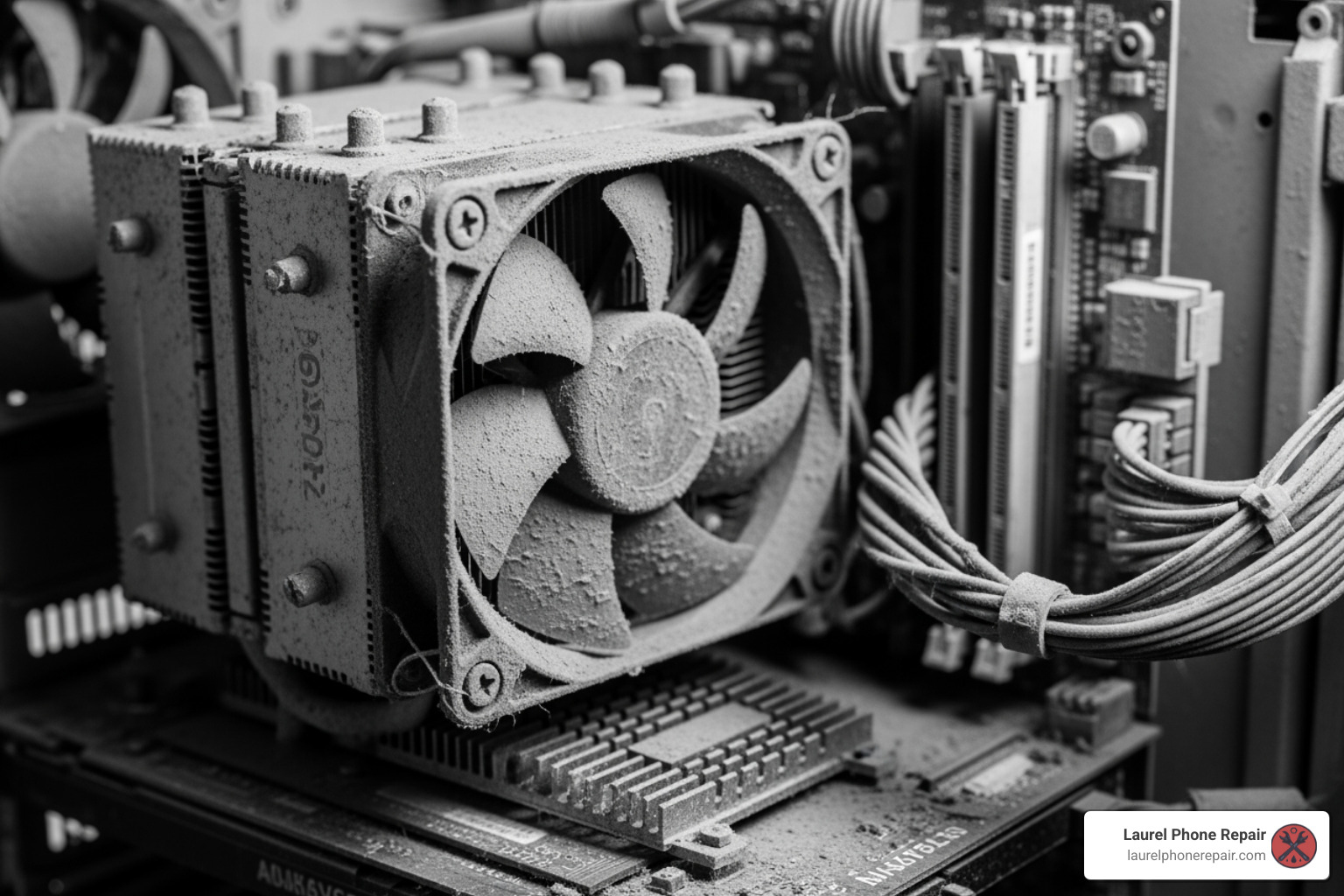
dusty computer interior before cleaning - computer motherboard repair

Top Causes of Motherboard Damage

Our experience shows these are the most frequent reasons for computer motherboard repair:

  • Heat and Dust Accumulation: Overheating is a silent killer for electronics. Dust acts as an insulator, trapping heat and degrading components over time.
  • Power Surges and Unstable Voltage: Spikes or drops in electrical current can fry sensitive components. A quality power supply (PSU) and surge protector are your first line of defense.
  • Electrostatic Discharge (ESD): A small static shock from your body can permanently damage motherboard components. Always ground yourself before working inside a PC.
  • Incorrect Component Installation: Forcing a RAM stick or misaligning a CPU can cause physical damage to slots, pins, and traces.
  • Physical Drops or Impacts: Accidental drops are a leading cause of laptop motherboard failure, and even a knock to a desktop can dislodge parts.
  • Age and Wear and Tear: Components degrade over time, and solder joints can weaken, especially on older or heavily used machines.

For a deeper dive into one of the motherboard’s most critical partners, the CPU, check out More about CPUs.

The Special Case of Water Damage

Liquid spills can cause short circuits and corrosion. If a spill occurs:

  1. POWER OFF IMMEDIATELY: Hold the power button until the PC shuts down.
  2. DISCONNECT POWER: Unplug the AC adapter and remove the battery, if possible.
  3. DO NOT POWER IT ON AGAIN: Powering it on with liquid inside will cause more damage.
  4. BRING IT TO US: The sooner we can professionally clean it, the higher the chance of a successful repair.

We use ultrasonic cleaning to remove corrosion and residue from liquid-damaged boards, a process far superior to basic cleaning methods. This technique often saves boards that would otherwise be a total loss.

Proactive Care: How to Prolong Your Motherboard’s Lifespan

A little prevention goes a long way:

  • Regular Internal Cleaning: Every six months, use compressed air to clear dust from fans, heatsinks, and the motherboard to maintain airflow.
  • Ensure Proper Airflow: Keep your PC in a well-ventilated area, not on soft surfaces or in enclosed cabinets.
  • Use a Quality Surge Protector: This is a non-negotiable accessory to protect against power spikes.
  • Careful Handling During Upgrades: Always use an anti-static wrist strap and handle components gently. Never force anything into place.
  • Update BIOS/UEFI Carefully: Only update your BIOS if there’s a specific reason, and follow the manufacturer’s instructions precisely to avoid bricking your board.

The World of Professional Computer Motherboard Repair

When DIY diagnostics hit a wall, or the issue requires more than just reseating a component, professional computer motherboard repair comes into play. This is where specialized knowledge and tools make all the difference. We offer comprehensive Services for all your electronic repair needs.

From Desktops to Laptops: Understanding the Differences

While serving the same purpose, desktop and laptop motherboard repairs differ significantly:

  • Accessibility: Laptop motherboards are compact, integrated, and difficult to access, requiring specialized disassembly.
  • Integrated Components: Laptops often have the CPU and RAM soldered to the board, making replacement impossible without advanced microsoldering. Desktops are modular.
  • Proprietary Designs: Laptops use proprietary board designs, making parts harder to source than standard desktop boards (ATX, Micro-ATX).
  • Repair Complexity: Due to their compact and integrated nature, laptop motherboard repairs are often more complex and reliant on microsoldering.

What is Microsoldering? A Look at Advanced Component-Level Computer Motherboard Repair

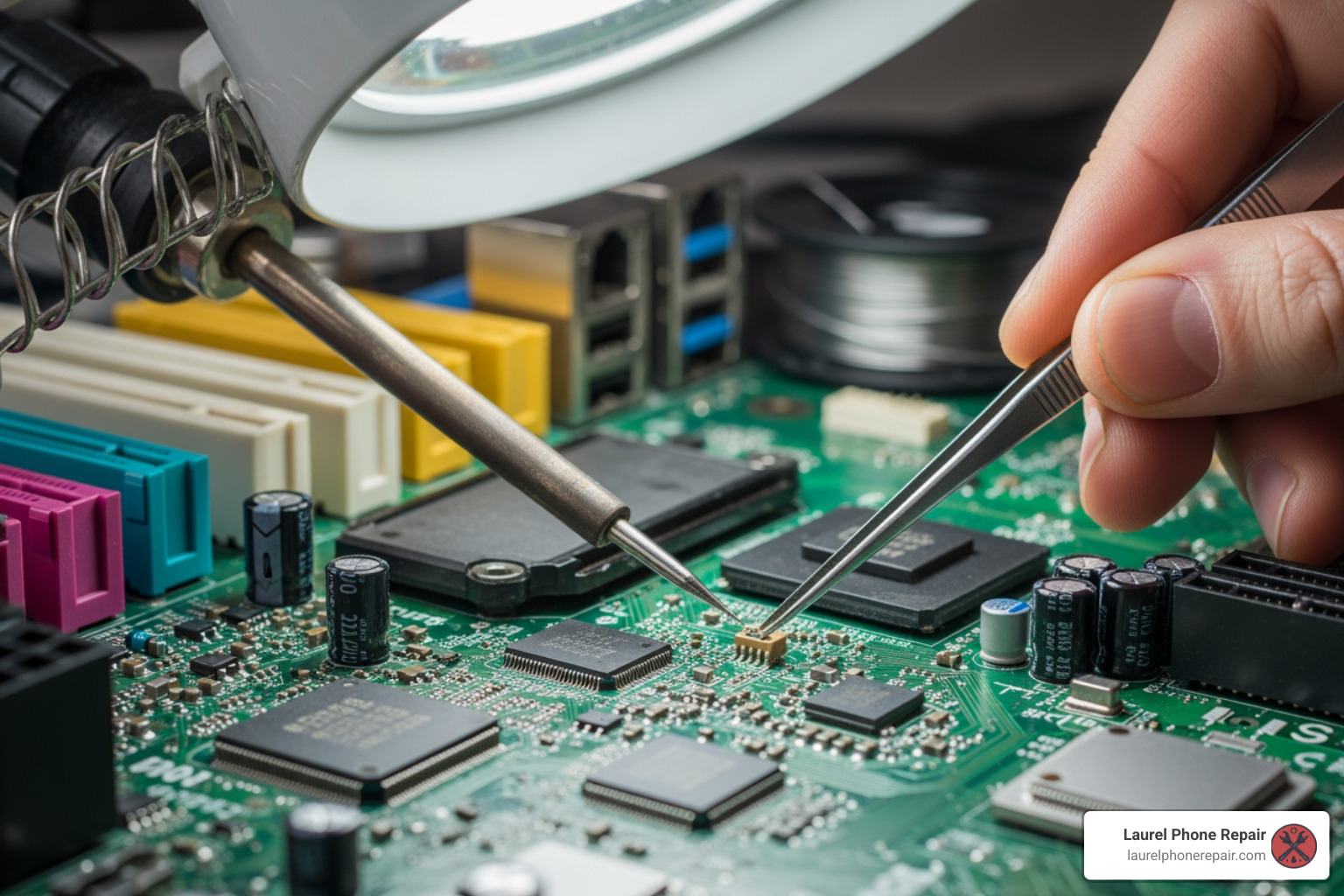
Microsoldering is a highly specialized skill involving precision soldering under a microscope to repair or replace tiny, surface-mounted components. Our technicians, with over 20 years of experience, are experts in these advanced techniques.

  • Precision Work: Microsoldering allows us to repair damaged traces (the “wires” on the board) and replace individual capacitors, resistors, or complex integrated circuits (ICs).
  • Replacing IC Chips: When a specific chip fails (e.g., a power or video chip), we can replace it, fixing “no power” or “no video” issues.
  • Fixing Damaged Traces: We can rebuild microscopic copper pathways on the board that have been broken by liquid damage or physical stress.
  • When It’s Necessary: Microsoldering is essential for complex issues like liquid damage or power failures, especially when replacing the board is too expensive or impossible.

Specialized Tools of the Trade

Professional computer motherboard repair requires specialized equipment:

  • Microscopes: Essential for magnifying tiny components for accurate microsoldering.
  • Hot Air Rework Stations: Deliver controlled hot air to safely desolder and solder surface-mounted components.
  • BGA Machines: Used for precise heating and placement of complex components like GPUs and chipsets.
  • BIOS Programmers: To reprogram BIOS chips and fix firmware corruption.
  • Multimeters and Oscilloscopes: Diagnostic tools to measure electrical signals and pinpoint faults.

Repair or Replace? Making the Right Choice

This is the million-dollar question for many PC owners. Deciding whether to repair your motherboard or replace it (or even replace the entire computer) depends on several factors.

Feature Motherboard Repair Motherboard Replacement
Cost Typically $80-$140 labor + parts (often cheaper) $50-$200+ for board + labor (can be expensive)
Time Potentially same-day to a few days for complex issues Can be same-day to a few days, depending on part availability
Data Retention Data usually intact, no OS reinstallation needed OS reinstallation often required, data backup crucial
Sustainability More environmentally friendly, extends device life More e-waste, though can revitalize an old system
Performance Restores original performance Can offer performance upgrade (if newer board)

DIY vs. Professional Help: A Cost-Benefit Analysis

While DIY is tempting, the risks of repairing a motherboard often outweigh the benefits for an average user.

Risks of DIY:

  • Electrostatic Discharge (ESD): You can easily fry components with static electricity without proper grounding.
  • Further Damage: A simple mistake can cause irreparable damage to the board.
  • Required Tools and Skills: Component-level repair requires specialized tools and expertise most users don’t have.
  • Time and Frustration: Diagnosing and repairing a motherboard is often a time-consuming and frustrating process.

When to Call a Professional:

  • If basic troubleshooting fails.
  • For any issue requiring component-level repair (e.g., failed capacitors, liquid damage).
  • When you want the peace of mind that comes with a professional repair and a warranty.

For professional assistance, visit our Computer Repair page. If you’re curious about the process, you can read How to Remove a Computer Motherboard – but remember, installation is even more complex!

Understanding the Cost and Timeline for a Professional Computer Motherboard Repair

At Laurel Phone Repair, we offer transparent pricing and efficient service.

  • Diagnostic Fees: We offer free diagnostics to identify the problem accurately before any work begins.
  • Typical Labor Costs: Labor for motherboard repair typically ranges from $80 to $140, often much less than a new board or computer.
  • Cost of Replacement Parts: Part costs vary, and we always discuss options with you, including OEM and aftermarket choices.
  • Turnaround Time: Simple repairs can often be done same-day. More complex jobs might take a few days, but all work is done in-house for faster service.

You can find more details on our service costs on our Pricing page.

When is a Full Motherboard Replacement the Better Option?

Sometimes, replacement is the more practical choice for computer motherboard repair:

  • Extensive Damage: If the board has widespread physical or liquid damage, repair may be impossible or too costly.
  • Obsolete Technology: If your motherboard is very old, a replacement can serve as an upgrade to a newer, better-performing platform.
  • Major Performance Upgrade: Replacing the motherboard allows you to install a newer CPU and faster RAM, effectively creating a new system.
  • Cost-Effectiveness: If the repair cost approaches the price of a new board, replacement is the more sensible long-term solution.

Frequently Asked Questions about Motherboard Issues

We get a lot of questions about motherboards. Here are some of the most common ones:

What is the role of the CPU and how does it interact with the motherboard?

The CPU is the computer’s “brain,” and the motherboard is its “nervous system.” The CPU performs calculations, while the motherboard acts as the central hub connecting the CPU to everything else—memory (RAM), storage, and peripherals. The motherboard’s chipset manages this data flow and defines which components are compatible. Without the motherboard, the CPU cannot communicate with any other part of the computer. Learn more about this component on Wikipedia – Central Processing Unit.

Can a bad or swollen capacitor be fixed?

Yes, absolutely. A bad or swollen capacitor is one of the most common and repairable motherboard failures. These components regulate power, and when they fail (bulging or leaking), they can cause system instability or prevent the computer from booting. The repair involves carefully desoldering the faulty capacitor and soldering a new one in its place. This requires precision skills and specialized tools to avoid damaging the board, which is why this repair is “often best left to experts.” We have the expertise and tools to perform this common repair safely and effectively.

Do I need to reinstall my operating system after a motherboard replacement?

In most cases, yes. A motherboard replacement is a fundamental hardware change. Your operating system (like Windows) installs specific drivers for the original motherboard’s chipset. A new board will have a different chipset, and the old drivers will cause conflicts and instability. A fresh OS installation ensures all the correct drivers are used, providing optimal performance. You may also face OS activation issues, especially with OEM licenses tied to the original hardware. Remember to back up your data before any major hardware change. For specific guidance on Windows, consult resources like http://support.microsoft.com.

Conclusion: Getting Your Computer Back in Action

When your PC starts acting up, especially with symptoms pointing to the motherboard, it can feel like your digital world is grinding to a halt. But as we’ve explored, a failing motherboard doesn’t always spell the end for your beloved computer.

The key takeaway? Diagnosis is paramount. Understanding the signs of failure, from strange beeps to a black screen, is the first step. Many issues, like faulty capacitors, power problems, or even liquid damage, are often repairable thanks to advanced techniques like microsoldering and the right specialized tools.

Repair is often not only possible but also a cost-effective and environmentally friendly alternative to replacing your entire system. With labor costs typically ranging from $80-$140 for a computer motherboard repair, it’s a smart investment to get your PC back to peak performance.

Whether you’re in Laurel, Hattiesburg, Jackson, or Jones County, Mississippi, our experienced technicians are here to help. We’ve got over 20 years of expertise in diagnosing and fixing even the most complex motherboard issues. Don’t let a failing motherboard frustrate you. Bring your device to us for a free diagnostic and let us get your computer back in action.

Ready to get your computer running smoothly again? Schedule your computer repair today!

The Ultimate Guide to Samsung Galaxy A03s Screen Replacement

A03s Screen Replacement: Ultimate 2025 Guide

Why Your Samsung Galaxy A03s Screen Replacement Matters

A03s screen replacement is a common repair that becomes necessary when your device suffers from cracks, unresponsive touch, or display issues. Here’s what you need to know at a glance:

Quick Answer:

  • Professional Repair Cost: Typically $29.75+ for parts, with same-day service available
  • DIY Cost: Around $29.75 for the screen part, plus tools ($20-40 if you don’t own them)
  • Repair Time: 1-3 hours for DIY (beginners may take longer), or same-day at a repair shop
  • Best Option: Professional repair offers warranty protection and eliminates risk of further damage

A cracked or malfunctioning screen on your Samsung Galaxy A03s isn’t just frustrating—it disrupts your daily life. Whether you dropped your phone, sat on it, or woke up to mysterious lines across the display, you’re faced with an important decision: attempt a DIY repair or trust a professional.

The Samsung Galaxy A03s (model numbers SM-A037U, SM-A037F, and SM-A037M) is a popular budget-friendly smartphone, but its screen replacement requires careful handling of multiple internal components. You’ll need to remove the back cover, disconnect the battery, remove the mainboard, and transfer several small parts to the new screen assembly. One wrong move can damage fragile flex cables or even cause a battery fire.

This guide walks you through everything you need to know about replacing your A03s screen—from identifying damage symptoms to understanding your repair options. We’ll break down the costs, time commitment, and risks involved in both DIY and professional repairs, so you can make the best choice for your situation.

I’m Ralph Harris, and with over 20 years of experience in electronics repair and more than 500 Apple repair certifications, I’ve personally handled countless a03s screen replacement repairs and understand exactly what it takes to restore your device safely. Let’s explore your options.

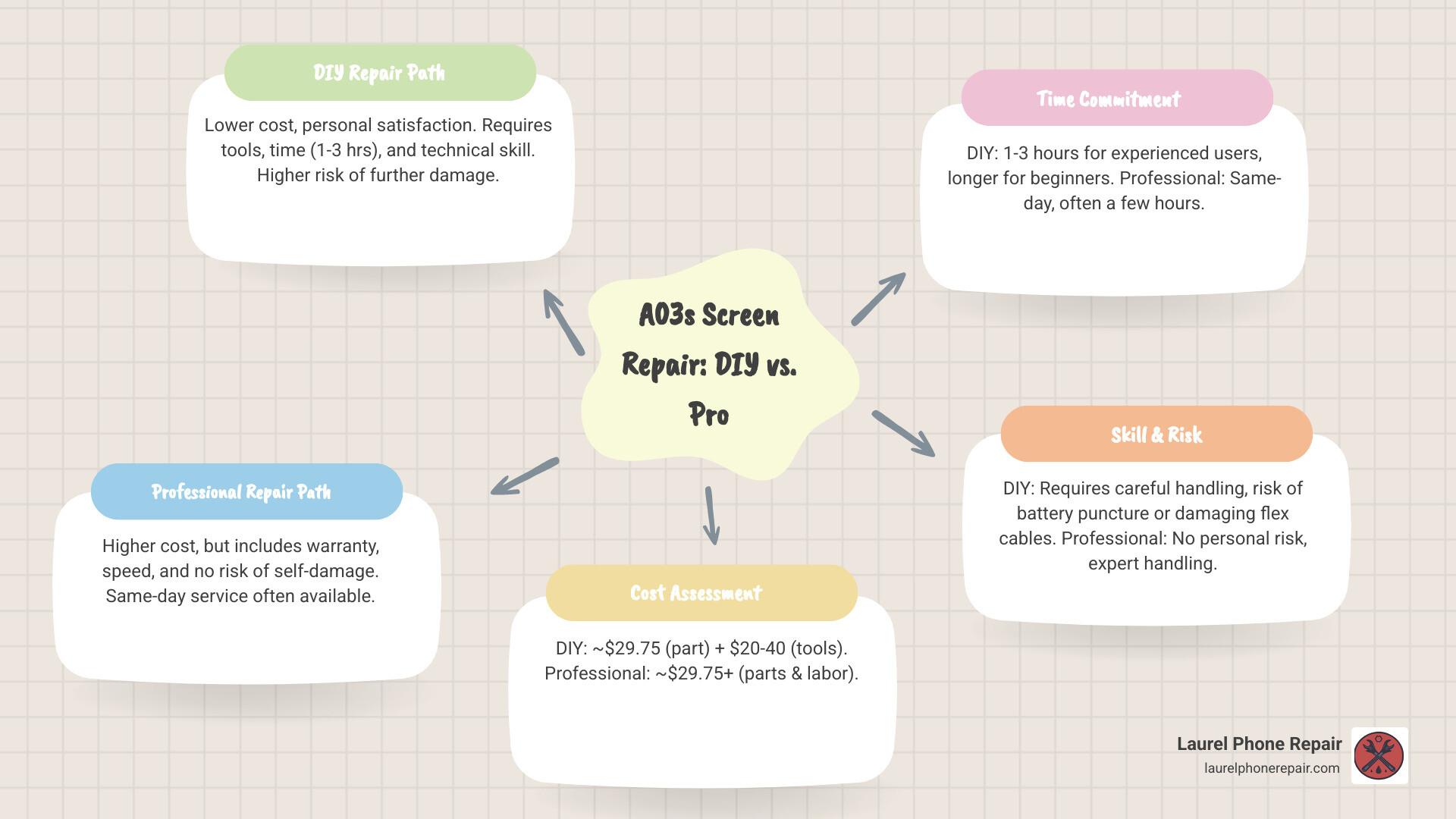
Infographic showing decision tree for A03s screen replacement: Start with budget and skill level assessment, then branch to DIY path showing lower cost but higher risk and time commitment versus Professional path showing higher cost but warranty protection and same-day service, with final decision based on technical confidence and time availability - a03s screen replacement infographic mindmap-5-items

Is Your Samsung A03s Screen Damaged? Key Symptoms and Model Variations

Before you consider an a03s screen replacement, it’s crucial to correctly diagnose the problem. Sometimes, what looks like a minor crack can hide more serious internal display damage. Here are the common symptoms of a damaged Samsung Galaxy A03s screen:

  • Visible Cracks or Shatters: This is the most obvious sign. Even small hairline cracks can compromise the screen’s integrity and lead to further damage.
  • Scratches: While minor scratches might not affect functionality, deep scratches can obscure the display and eventually lead to cracks.
  • Black Spots or “Ink Blots”: These are often a sign of internal liquid crystal damage. They can grow over time, eventually rendering parts of your screen unusable.
  • Colored Lines on the Display: Vertical or horizontal lines in various colors (often green, pink, or white) indicate a damaged display panel or a faulty connection.
  • Unresponsive Touch: If parts of your screen don’t respond to touch, or respond intermittently, the digitizer (the touch-sensitive layer) is likely damaged.
  • “Ghost Touch”: This spooky symptom occurs when your phone registers touches that aren’t happening, leading to apps opening randomly or settings changing on their own. It’s usually a sign of a severely damaged digitizer.
  • Flickering Screen: A rapidly flickering or dimming screen can point to a loose connection, a failing display panel, or even a damaged flex cable.

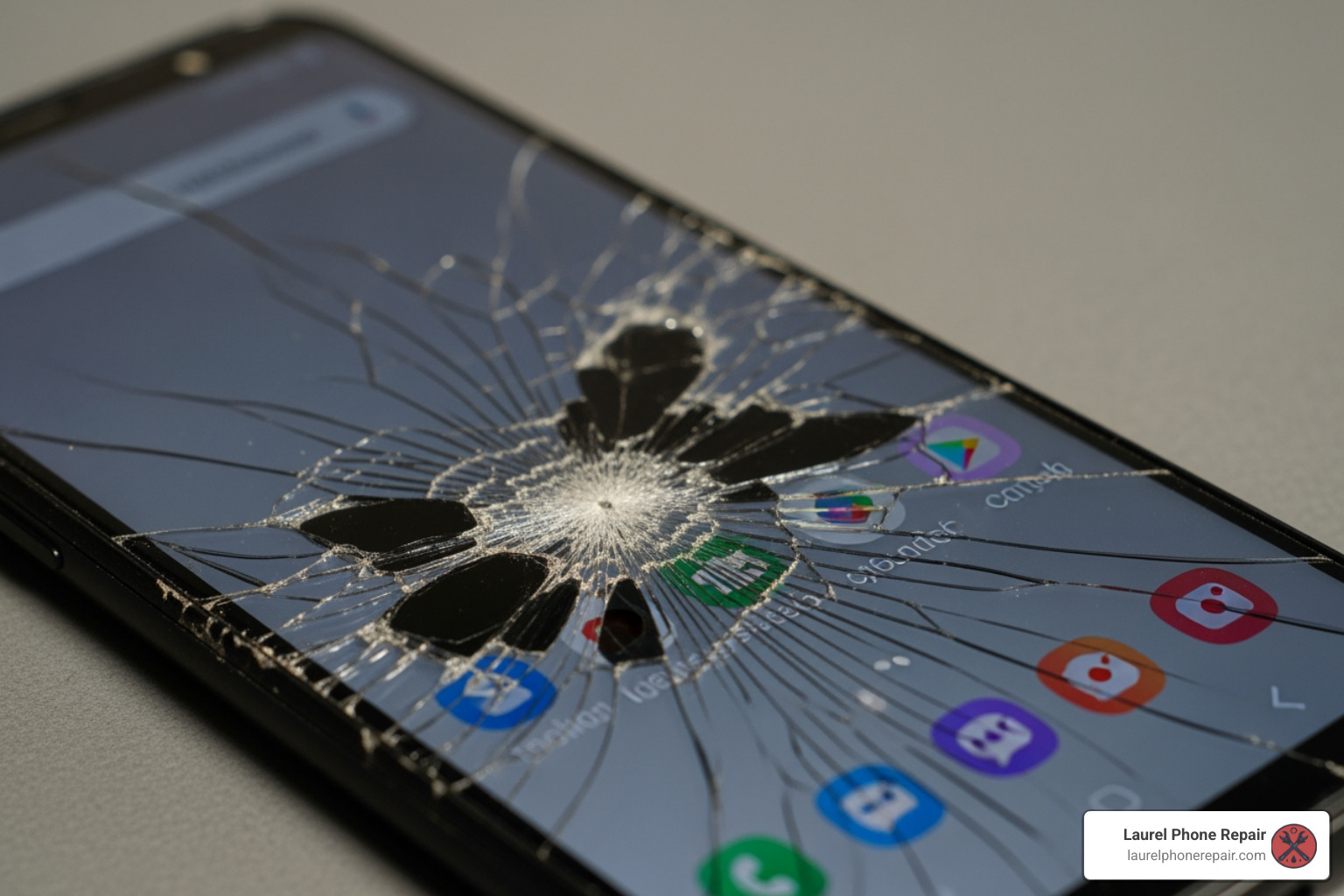
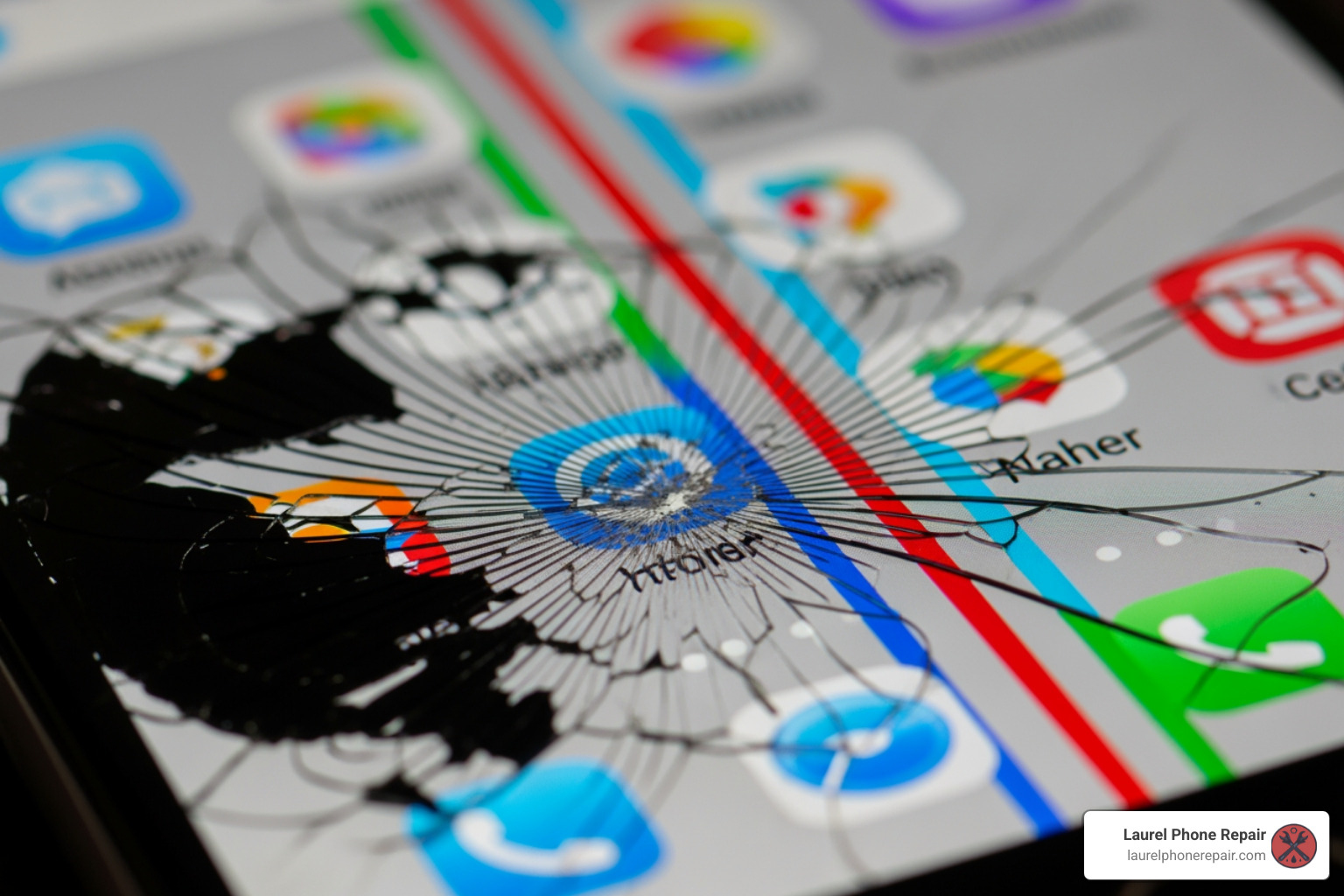
Image showing different types of screen damage like cracks, black ink spots, and lines - a03s screen replacement

Understanding Model Variations for Part Compatibility

The Samsung Galaxy A03s has a few model variations, and while they are largely similar, it’s important to be aware of them, especially when sourcing replacement parts. The primary model numbers you’ll encounter are:

  • SM-A037U (US Version): This is the version commonly sold in the United States.
  • SM-A037F (International Version): Found in many global markets.
  • SM-A037M: Another international variant.

According to our research, the US version of the Samsung A03s can be slightly different from the international version. This means that components, particularly the screen assembly, might have minor variations that affect compatibility. When you’re looking for an a03s screen replacement part, always ensure it specifies compatibility with your exact model number (e.g., SM-A037U). While many parts are interchangeable, confirming compatibility saves you time and frustration.

For instance, if your new screen comes with a pre-installed frame, the repair procedure might differ slightly from one where you need to transfer components to a new screen. Our experts are well-versed in these nuances and ensure the correct part is used for your specific device.

A03s Screen Replacement Options: Professional Repair vs. DIY

When faced with a broken Samsung Galaxy A03s screen, you essentially have two main paths: attempt to replace it yourself or entrust it to professionals. Both options have their merits and drawbacks, which we’ve summarized in the table below.

Feature DIY Repair Professional Repair
Cost Low (part cost + tools) Moderate (includes part, labor, and warranty)
Time Commitment High (research, execution, troubleshooting) Low (often same-day, few hours)
Risk Level High (potential for further damage, data loss) Low (expert handling, insured service)
Warranty Part-only (from seller), no labor guarantee 1-year limited warranty on parts and labor

Professional Repair Benefits

Choosing a professional a03s screen replacement service offers significant advantages, especially if you value peace of mind and a hassle-free experience.

  • Expert Technicians: Our team consists of rigorously trained and experienced technicians who specialize in phone repairs. We understand the intricate details of Samsung devices and have handled countless screen replacements. This expertise minimizes the risk of further damage to your device.
  • Speed and Convenience: We know you rely on your phone, so speed is a top priority for us. Many of our screen repairs, including for the Samsung Galaxy A03s, are completed as soon as the same day, often within a few short hours. You can walk into one of our locations in Laurel, Hattiesburg, Jackson, or Jones County, Mississippi, or schedule a repair online for ultimate convenience.
  • Warranty on Parts and Labor: This is a major benefit. When you choose us for your a03s screen replacement, your repair comes with a 1-year limited warranty on both the parts used and the labor performed. This means if anything goes wrong related to the repair within that period, we’ve got you covered. This is a level of assurance you simply won’t get with a DIY repair.
  • No Risk of Further Damage: Attempting a DIY repair carries inherent risks. Our professionals have the right tools, knowledge, and experience to perform the repair safely, ensuring your device is returned to you in optimal condition without new issues.
  • Transparent Pricing: We offer free diagnostics and a clear cost assessment before any work begins. We aim to provide the best rates and even offer a low price guarantee: if you find a local competitor’s regularly published price for the same repair, we’ll match it and beat it by $5.
  • More Info About Our Repair Services: Want to learn more about how we can bring your phone back to life? You can find more info about our repair services on our website.

DIY Repair Considerations

The idea of a DIY a03s screen replacement can be tempting, primarily due to perceived cost savings and the satisfaction of fixing something yourself.

  • Cost Savings: On the surface, buying just the replacement screen part (which can be found for around $29.75) seems cheaper than a professional service. However, this doesn’t account for the specialized tools you’ll need, which can add $20-40 to the cost if you don’t already own them.
  • Personal Satisfaction: There’s a certain pride in successfully repairing your own device.
  • Risks Involved: This is where DIY gets tricky. The Samsung Galaxy A03s screen replacement is not a simple task. It involves a multi-step process that requires precision and patience. Our research shows that even experienced repairers find the process complex. One iFixit guide, for example, outlines 15 distinct steps just for the screen replacement.
  • Potential for Further Damage: Without proper tools, technique, and experience, you risk damaging other delicate components like flex cables, the battery, or even the motherboard. A small mistake can turn a screen replacement into a much more expensive repair, or worse, render your phone irreparable.
  • No Warranty on Labor: If you mess up, you’re on your own. While the replacement screen itself might come with a limited warranty from the seller, there’s no guarantee covering your labor or any accidental damage you might inflict during the process.
  • Time-Consuming: For a beginner, a repair that takes an expert a few hours could easily stretch into a full day or more, especially if you encounter unexpected issues or need to reorder parts.

While DIY offers potential savings and satisfaction, it comes with significant risks and a steep learning curve.

DIY Guide: How to Replace the Samsung Galaxy A03s Screen Yourself

If you’re feeling adventurous and confident in your technical skills, a DIY a03s screen replacement is technically possible. However, we must stress that this is a complex repair and we strongly advise caution. Our goal here is to inform you of the process, not necessarily to endorse DIY over professional service, especially given the risks.

Image of a phone repair toolkit with tools like spudgers, opening picks, and a heat gun - a03s screen replacement

Tools and Parts Needed for an a03s screen replacement

To start on this journey, you’ll need a specific set of tools and, of course, the replacement screen itself.

  • Phillips #00 Screwdriver: Essential for removing tiny internal screws.
  • Spudger: A non-conductive tool used for prying and disconnecting delicate components without causing electrical shorts.
  • Tweezers: For handling small screws, flex cables, and other tiny parts.
  • Opening Picks (Plastic): Used to separate adhesive and pry open seams without scratching the device.
  • iOpener or Heat Gun/Hair Dryer: Heat is crucial for softening the adhesive that secures the back cover and the screen. An iOpener provides controlled, even heat.
  • Isopropyl Alcohol (90%+): For cleaning adhesive residue and helping to loosen stubborn adhesive.
  • Replacement Adhesive: New adhesive strips are necessary to re-seal the back cover and the new screen, helping to restore some dust and splash resistance (though full water resistance is hard to restore).
  • Suction Cup/Handle: To help lift the back cover and screen after heating.
  • Thin Plastic Card (e.g., playing card): Can be useful for slicing adhesive.
  • Replacement Screen Part: This is the most crucial component. A compatible Samsung Galaxy A03s screen assembly (LCD with digitizer) for your specific model (e.g., SM-A037U). The average cost for this part is around $29.75. Ensure it comes with a frame if you want to avoid transferring some components.

Step-by-Step Replacement Process

The following is a generalized overview of the steps involved in an a03s screen replacement. This is a summary and does not replace a detailed repair guide. We advise you to consult comprehensive, visual guides (such as those found on iFixit, for informational purposes only) if you choose the DIY route.

  1. Safety Precautions:

    • Discharge the Battery: Before you start, discharge your phone’s battery to 25% or lower. A fully charged lithium-ion battery can catch fire or explode if accidentally punctured during the repair.
    • Power Off: Always power off your device completely before beginning any disassembly.
    • Protect Your Eyes: Consider wearing safety glasses, especially if the screen is severely cracked, to protect against glass shards.
  2. Eject SIM Card Tray: Use a SIM eject tool or a straightened paperclip to remove the SIM card tray.

  3. Remove Back Cover:

    • Apply heat to the edges of the back cover using an iOpener or heat gun to soften the adhesive.
    • Use a suction cup to create a small gap, then insert an opening pick and carefully slide it around the perimeter to cut through the adhesive. Be extremely careful, as the fingerprint sensor cable is often attached to the back cover and can be easily damaged.
    • Once the adhesive is cut, gently open the back cover, being mindful of any attached flex cables.
  4. Disconnect the Battery: Locate the battery connector on the motherboard and use a spudger to carefully pry it straight up and disconnect it. This is a critical safety step.

  5. Remove Internal Components (Partial Disassembly):

    • Unscrew and remove any brackets or covers protecting the motherboard and other components.
    • Disconnect various flex cables, such as the power button ribbon cable, mainboard flex cable, and antenna cable, using a spudger and tweezers.
    • Carefully remove the mainboard and charging board if necessary to access the screen connections.
  6. Component Transfer (if applicable): If your new screen assembly does not come with a pre-installed frame or certain small components, you’ll need to carefully transfer them from your old screen. This might include the earpiece speaker, vibrate motor, and volume button flex cable. This often involves applying heat and isopropyl alcohol to loosen adhesive.

  7. Remove the Old Screen:

    • Apply heat to the front of the screen to soften the adhesive holding it to the frame.
    • Use a suction cup to gently pull up the screen, creating a small gap.
    • Insert opening picks and carefully slide them around the edges to cut through the screen adhesive. This process can be delicate, especially if the screen is heavily cracked.
    • Once the adhesive is cut, carefully thread the display cable through the frame and remove the old screen.
  8. Reassembly:

    • Clean any old adhesive residue from the frame with isopropyl alcohol.
    • Connect the new screen’s flex cable to the motherboard.
    • Apply new adhesive strips to the frame where the screen will sit.
    • Carefully place the new screen into the frame, ensuring it’s properly aligned.
    • Reconnect all internal components and flex cables that were disconnected.
    • Reinstall any brackets and covers.
    • Reconnect the battery.
    • Apply new adhesive to the back cover and carefully re-seal it.
    • Reinsert the SIM card tray.

Key Risks and Precautions for a DIY a03s screen replacement

As you can see, the DIY process is intricate and fraught with potential pitfalls. Here are the major risks you face:

  • Battery Puncture and Fire Hazard: The battery is adhered firmly, and prying it incorrectly can lead to puncture. This can cause the battery to vent, swell, or even catch fire or explode. We’ve seen this happen, and it’s not a pretty sight.
  • Damaging Fragile Flex Cables: Tiny ribbon cables connect various components. They are extremely delicate and can tear or crease easily, leading to non-functional buttons, cameras, or sensors. The fingerprint sensor cable, in particular, is often attached to the back cover and can be severed if not handled with extreme care during removal.
  • Losing Water Resistance: Samsung Galaxy A03s, like many modern phones, has some level of dust and splash resistance, achieved through adhesive seals. Opening the phone inevitably breaks these seals. Without applying new, high-quality adhesive correctly, your phone will lose its water protection.
  • Incomplete or Faulty Repair: You might successfully replace the screen, only to find the touch isn’t working, the display has dead pixels, or another component stopped functioning. This could be due to a faulty part, an improperly connected cable, or accidental damage during the repair.
  • Troubleshooting Issues: If something goes wrong, diagnosing the problem can be incredibly difficult without specialized tools and knowledge. You could spend hours or days trying to figure out why your phone isn’t working, potentially causing more damage in the process.

Given these challenges, many of our customers in Laurel, Hattiesburg, Jackson, and Jones County, Mississippi, find that the peace of mind and guaranteed results of a professional repair are well worth the investment.

Cost, Time, and Warranty for Your A03s Screen Replacement

Understanding the financial and time commitments, as well as the warranty implications, is crucial when deciding on an a03s screen replacement.

Average Cost Breakdown

The cost of an a03s screen replacement varies significantly between DIY and professional services.

  • DIY Cost:

    • Part Cost: The Samsung Galaxy A03s screen replacement part itself can be found for as low as $29.75. This price typically includes the LCD and digitizer assembly.
    • Tool Investment: If you don’t already own the necessary specialized tools (screwdrivers, spudgers, heat gun, etc.), you could be looking at an additional $20-$40 for a basic repair kit.
    • Hidden Costs: Factor in potential costs for replacement adhesive, isopropyl alcohol, and, crucially, the cost of replacing accidentally damaged components if the repair goes wrong.
  • Professional Repair Cost:

    • Professional repair costs typically include the price of the part, the technician’s labor, and a warranty. While we don’t list a fixed price here (as specific costs can vary based on diagnostics), we can tell you that we aim for affordability.
    • Our pricing is always transparent, and we provide a free diagnostic and cost assessment before any work begins. We even offer a low price guarantee, promising to beat any local competitor’s regularly published price for the same repair by $5. This ensures you get a fair deal without compromising on quality or peace of mind.
    • For an accurate quote custom to your specific Samsung Galaxy A03s and its condition, we encourage you to check our repair pricing or visit one of our stores.

How Long Does the Repair Take?

Time is often a critical factor, especially when your primary communication device is out of commission.

  • DIY Time:

    • For someone experienced in phone repair, an a03s screen replacement might take 1-3 hours.
    • However, for a beginner, the process can be significantly longer. Researching steps, carefully executing each delicate movement, and inevitably troubleshooting unexpected issues can stretch the repair time to several hours, or even a full day.
    • One iFixit guide for the A03s involves 15 detailed steps, each requiring careful attention.
  • Professional Repair Time:

Understanding the Warranty

Warranty protection is a significant differentiator between DIY and professional repairs.

  • DIY Warranty:

    • When you purchase a replacement screen part, it might come with a limited warranty from the seller, covering defects in the part itself.
    • However, this warranty typically does not cover any damage you might cause during the installation process, nor does it guarantee the functionality of the repair as a whole. You are solely responsible for your labor. If the screen stops working due to your installation, you’re out of luck.
  • Professional Repair Warranty:

    • At Laurel Phone Repair, we stand behind our work. All our repairs, including a03s screen replacement, come with a comprehensive 1-year limited warranty.
    • This warranty covers both the replacement parts used and the labor performed by our technicians. This means you get peace of mind knowing that if any issues arise related to the repair within a year, you can bring your device back to us, and we’ll make it right.
    • This level of assurance is invaluable and provides a safety net that DIY repairs simply cannot offer. Learn more about our support and warranty policy on our website.

Conclusion

A damaged screen on your Samsung Galaxy A03s can be a real headache, but thankfully, an a03s screen replacement is a common and solvable problem. We’ve explored the symptoms of screen damage, the critical differences in model variations, and the two main avenues for repair: doing it yourself or trusting the experts.

While the DIY route might offer a lower initial cost for the part and the satisfaction of a personal achievement, it comes with significant challenges. The process is intricate, requiring specialized tools and a steady hand. The risks of damaging other delicate components, losing water resistance, or facing unexpected troubleshooting issues are high. Moreover, a DIY repair typically offers no warranty on your labor, leaving you vulnerable if things go awry.

On the other hand, professional repair services, like those we offer in Laurel, Hattiesburg, Jackson, and Jones County, Mississippi, provide a stress-free and reliable solution. Our experienced technicians use quality parts, perform repairs quickly (often same-day), and back their work with a 1-year limited warranty. This means you get your device back in working order, without the headaches or risks associated with a complex DIY project, and with the assurance that your investment is protected.

For a fast, reliable, and guaranteed Samsung Galaxy A03s screen replacement, trust the experts at Laurel Phone Repair. We’re here to get your device back to perfect condition, so you can get back to what matters most.

Schedule your screen repair today!

Join our mailing list for the latest updates and special offers.

Sign up for our newsletter to receive exclusive promotions and repair tips straight to your inbox.